Courses
We leverage open-source resources and tools to teach students valuable tech skills. The resources are continually updated and refined by developers around the world, ensuring our students learn with the most current, widely-used technologies.
Mobile Development Curriculum (12 Months)
This unit introduces Kotlin and how to set up the development environment for Android development.
What is Kotlin?
Kotlin is a modern, trending programming language that was released in 2016 by JetBrains.
It has become very popular since it is compatible with Java (one of the most popular programming languages out there), which means that Java code (and libraries) can be used in Kotlin programs.
Kotlin is used for:
- Mobile applications (especially Android apps)
- Web development
- Server-side applications
- Data science
- And much more!
Why Use Kotlin?
- ✅ Fully compatible with Java
- ✅ Works on different platforms (Windows, Mac, Linux, Raspberry Pi, etc.)
- ✅ Concise and safe
- ✅ Easy to learn, especially if you already know Java
- ✅ Free to use
- ✅ Big community/support
Get Started
This tutorial will teach you the very basics of Kotlin.
It is not necessary to have any prior programming experience.
Kotlin IDE
The easiest way to get started with Kotlin is by using an IDE (Integrated Development Environment).
An IDE is used to edit and compile code efficiently.
For this guide, we will use IntelliJ IDEA, developed by the same creators of Kotlin. It is free to download from:
Kotlin Install
Once IntelliJ is downloaded and installed, click on the New Project button to get started:

Then, click on "Kotlin" in the left-side menu and enter a name for your project:
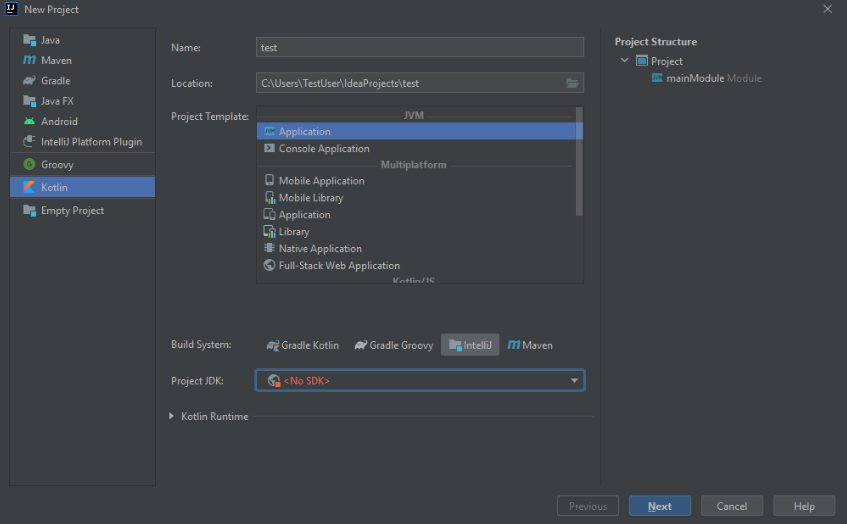
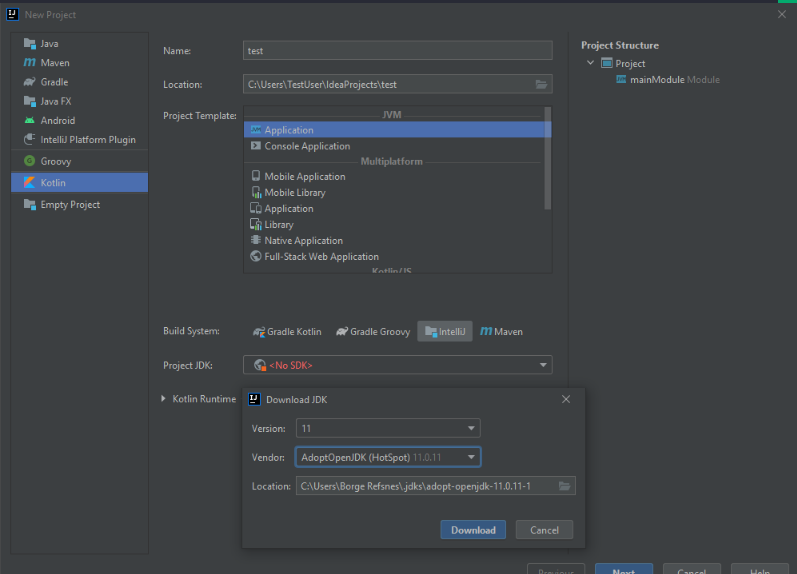
Next, we need to install the JDK (Java Development Kit) to run Kotlin projects. Click on the "Project JDK" menu, select "Download JDK", then choose a version and vendor (e.g., AdoptOpenJDK 11), and click "Download":
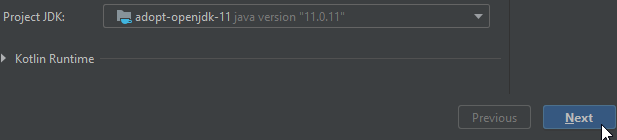
When the JDK is installed, select it from the menu and click "Next", then "Finish":
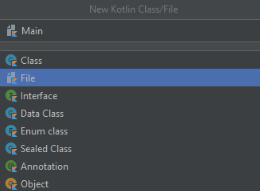
Now, let's start working with Kotlin! Open the src (source) folder and follow the steps in the image below to create a new Kotlin file:
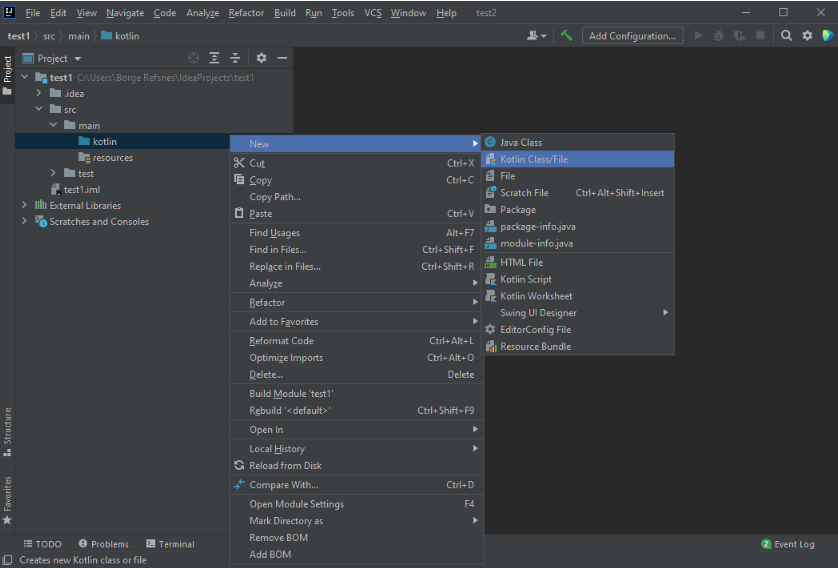
Choose "File", enter a name for your Kotlin file (e.g.,
Main):
Kotlin Syntax
In the previous chapter, we created a Kotlin file called Main.kt, and we used the following
code to print "Hello World" to the screen:
Example
fun main() {
                          println("Hello World")
                        }
Example Explained
The fun keyword is used to declare a function. A function is a block of
code designed
to perform a particular task.
In the example above, we declared the main() function, which is the entry point of every
Kotlin program.
Any code inside the main() function's curly brackets { } will be executed.
The println() function is inside main(), meaning that it will be executed.
The println() function is used to output/print text, and in our example, it will output:
Output:
Hello World📌 Good to Know:
In Kotlin, **statements do not require a semicolon** (;) at the end, unlike Java, C++, or
C#.
However, if you place multiple statements on the same line, you **must** use a semicolon to separate them:
Example:
fun main() { println("Hello"); println("World") }Output:
Hello
WorldMain Function Parameters
Before Kotlin version **1.3**, the main() function was required to have parameters.
The correct syntax was:
Example:
fun main(args: Array) {
                          println("Hello World")
                        }
However, starting from Kotlin 1.3, **parameters are optional**, and the program will run fine without them.
✅ Modern Syntax (No Parameters Required)
fun main() {
                          println("Hello World")
                        }
Even though parameters are no longer required, you can still use them if needed. For example, you can access command-line arguments like this:
Example:
fun main(args: Array) {
                          if (args.isNotEmpty()) {
                            println("Command-line argument: " + args[0])
                          } else {
                            println("No arguments provided.")
                          }
                        }
If you run the program with an argument (e.g., Hello Kotlin), the output will be:
Output:
Command-line argument: Hello KotlinTry it Yourself
Want to experiment with Kotlin code? Use the Try it yourself Tool to test the examples online.
🎉 Now that you understand Kotlin syntax, let's move on to writing more advanced Kotlin programs!
Kotlin Output (Print)
The println() function is used to output values or print text in Kotlin.
Example:
fun main() {
                          println("Hello World")
                        }
Output:
Hello WorldPrinting Multiple Lines
You can use multiple println() functions to print text on separate lines.
Example:
fun main() {
                          println("Hello World!")
                          println("I am learning Kotlin.")
                          println("It is awesome!")
                        }
Output:
Hello World!
                        I am learning Kotlin.
                        It is awesome!
Printing Numbers and Calculations
Kotlin allows you to print numbers and perform mathematical operations directly inside
println().
Example:
fun main() {
                          println(3 + 3)
                        }
Output:
6The print() Function
The print() function is similar to println(), but it does not insert a
new line at the end of the output.
Example:
fun main() {
                          print("Hello World! ")
                          print("I am learning Kotlin. ")
                          print("It is awesome!")
                        }
Output:
Hello World! I am learning Kotlin. It is awesome!💡 Notice how all the text is printed on the same line.
Comparing println() vs. print()
| Function | Description | Example |
|---|---|---|
println() |
Prints text and moves to a new line | println("Hello") |
print() |
Prints text on the same line | print("Hello") |
Try it Yourself
Want to test your Kotlin code? Use the Try it yourself Tool to practice printing output in Kotlin.
🎉 Now that you understand how to print text and numbers in Kotlin, let's move on to working with **variables**! 🚀
Kotlin Comments
Comments are used to **document** code, make it more **readable**, and prevent execution when testing alternative code.
There are **two types** of comments in Kotlin:
- Single-line comments (Using
//) - Multi-line comments (Using
/* */)
Single-line Comments
Single-line comments start with **two forward slashes (`//`)**.
Any text after // on the same line is **ignored by Kotlin** (will not be executed).
Example: Single-line comment before a line of code
// This is a comment
                        println("Hello World")
Example: Single-line comment at the end of a line
println("Hello World") // This is a commentOutput:
Hello World💡 The comment does not affect the execution of the code.
Multi-line Comments
Multi-line comments start with /* and end with */.
Everything inside /* ... */ will be **ignored** by the compiler.
Example: Multi-line comment (Block comment)
/* The code below will print the words "Hello World"
                           to the screen, and it is amazing */
                        println("Hello World")
Output:
Hello WorldUsing Comments to Disable Code
Developers often **disable code** by turning it into a comment:
Example:
// println("This line will not run")
                        println("Hello Kotlin!")
Output:
Hello Kotlin!💡 The first line is ignored because it is a **comment**.
Why Use Comments?
- 📝 **Explain complex code** to make it more readable.
- 🛠 **Disable lines of code** during testing.
- 👥 **Help teams understand the purpose of the code**.
Try it Yourself
Want to experiment with Kotlin comments? Use the Try it yourself Tool to test the examples online.
🎉 Now that you understand Kotlin comments, let's move on to **Kotlin Variables!** 🚀
This unit introduces **Kotlin Variables**, how to declare them, their types, and best practices.
Kotlin Variables
Variables are containers for storing data values.
To create a variable, use var or val, and assign a value using
the = sign.
Syntax:
var variableName = value
    val variableName = value
Example:
var name = "John"
    val birthYear = 1975

    println(name)        // Output: John
    println(birthYear)   // Output: 1975
Difference Between var and val
var: Variables **declared with `var` can be changed/modified**.val: Variables **declared with `val` cannot be changed** (like constants).
Example:
var name = "Alice"
    name = "Bob"  // This works because 'name' is declared with 'var'

    val pi = 3.14159
    pi = 3.14  // Error! 'val' variables cannot be changed
Variable Type
Kotlin **does not require specifying variable types** (e.g., `String`, `Int`), because it can infer them automatically.
Example:
var name = "John"      // String
    val birthYear = 1975   // Int

    println(name)          // Output: John
    println(birthYear)     // Output: 1975
However, you can **specify the type explicitly** if needed.
Example:
var name: String = "John"
    val birthYear: Int = 1975

    println(name)
    println(birthYear)
Declaring a Variable Without Assigning a Value
You **must specify the type** if you declare a variable without assigning a value.
✅ This works fine:
var name: String
    name = "John"
    println(name)
❌ This will generate an error:
var name
    name = "John"
    println(name)  // ERROR! Kotlin does not know the type of 'name'
💡 You will learn more about **Data Types** in the next chapter.
Notes on val
Variables created with **`val` cannot be reassigned** after they are initialized.
❌ This will generate an error:
val name = "John"
    name = "Robert"  // Error: Val cannot be reassigned
    println(name)
✅ Using var allows reassignment:
var name = "John"
    name = "Robert"
    println(name)  // Output: Robert
When to Use val?
The **`val` keyword** is useful when you want a variable to always store the same value, like PI.
Example:
val pi = 3.14159265359
    println(pi)  // Output: 3.14159265359
Displaying Variables
You can display variables using println().
Example: Printing a Variable
val name = "John"
    println("Hello " + name)
Output:
Hello JohnYou can also **combine two variables using `+`**.
Example:
val firstName = "John "
    val lastName = "Doe"
    val fullName = firstName + lastName

    println(fullName)  // Output: John Doe
For numbers, `+` acts as a mathematical operator:
Example:
val x = 5
    val y = 6
    println(x + y) // Output: 11
Variable Naming Rules
Variable names can contain:
- Letters (A-Z, a-z)
- Digits (0-9)
- Underscores
_ - Dollar signs
$(Not recommended)
Variable Naming Conventions
- ✅ **Must start with a letter** (e.g., `age`, `totalPrice`)
- ✅ Can **contain numbers** but cannot start with them (e.g., `score1`, `userCount`)
- ✅ **Case-sensitive** (`myVar` and `myvar` are different)
- ✅ Should **start with a lowercase letter** and **cannot contain spaces**
- ❌ **Reserved words** (e.g., `var`, `String`) **cannot be used as variable names**
CamelCase Variable Names
By convention, Kotlin uses **camelCase** for variable names.
Examples:
var firstName = "John"  // ✅ Good practice
    var lastName = "Doe"
    var myAge = 25
⚠️ Avoid writing variables like `firstname` or `lastname`. CamelCase improves readability.
Try it Yourself
Want to experiment with Kotlin variables? Use the Try it yourself Tool to practice variables in Kotlin.
🎉 Now that you understand Kotlin variables, let's move on to **Data Types!** 🚀
Kotlin Data Types
In Kotlin, the type of a variable is determined by its value:
Example:
val myNum = 5             // Int
                val myDoubleNum = 5.99    // Double
                val myLetter = 'D'        // Char
                val myBoolean = true      // Boolean
                val myText = "Hello"      // String
However, you can also **explicitly specify the type**:
Example:
val myNum: Int = 5
                val myDoubleNum: Double = 5.99
                val myLetter: Char = 'D'
                val myBoolean: Boolean = true
                val myText: String = "Hello"
Kotlin will automatically determine the type in most cases, but sometimes you **must specify it explicitly**.
Types of Data in Kotlin
- 🔢 **Numbers** - Integers, Floating points
- 🔠 **Characters** - Single character values
- ✅ **Booleans** - `true` or `false`
- 📝 **Strings** - A sequence of characters
- 📦 **Arrays** - A collection of values
Numbers in Kotlin
Numbers in Kotlin are categorized into **Integer Types** and **Floating Point Types**.
📌 Integer Types
| Type | Size | Range |
|---|---|---|
| Byte | 8-bit | -128 to 127 |
| Short | 16-bit | -32,768 to 32,767 |
| Int | 32-bit | -2,147,483,648 to 2,147,483,647 |
| Long | 64-bit | -9,223,372,036,854,775,808 to 9,223,372,036,854,775,807 |
Examples:
val myByte: Byte = 100
                val myShort: Short = 5000
                val myInt: Int = 100000
                val myLong: Long = 15000000000L
💡 Long values should end with **"L"** to differentiate them from Int.
📌 Floating Point Types
| Type | Size | Precision |
|---|---|---|
| Float | 32-bit | 6-7 decimal places |
| Double | 64-bit | 15 decimal places |
Examples:
val myFloat: Float = 5.75F
                val myDouble: Double = 19.99
💡 **Use "F" at the end** of Float values to differentiate them from Double.
Scientific Notation
Floating point numbers can be written using **scientific notation**:
Example:
val myNum1: Float = 35E3F
                val myNum2: Double = 12E4

                println(myNum1)  // Output: 35000.0
                println(myNum2)  // Output: 120000.0
Booleans
The **Boolean** data type can hold only two values: `true` or `false`.
Example:
val isKotlinFun: Boolean = true
                val isFishTasty: Boolean = false

                println(isKotlinFun)   // Output: true
                println(isFishTasty)   // Output: false
Characters
The **Char** data type stores **single characters** and must be enclosed in **single quotes** (`'A'`).
Example:
val myGrade: Char = 'B'
                println(myGrade)  // Output: B
⚠️ **You cannot use ASCII values** to assign characters in Kotlin:
❌ Incorrect Example:
val myLetter: Char = 66
                println(myLetter)  // Error
Strings
The **String** data type is used to store a sequence of characters.
Example:
val myText: String = "Hello World"
                println(myText)
Arrays
Arrays store **multiple values** in a **single variable**.
💡 You will learn more about Arrays in the Arrays chapter.
Type Conversion
In Kotlin, you **must use conversion functions** to change a numeric type to another type.
❌ Incorrect Example:
val x: Int = 5
                val y: Long = x  // Error! Type mismatch
✅ Correct Example:
val x: Int = 5
                val y: Long = x.toLong()
                println(y)  // Output: 5
Try it Yourself
Want to experiment with Kotlin Data Types? Use the Try it yourself Tool to practice.
🎉 Now that you understand Kotlin Data Types, let's move on to **Arrays!** 🚀
Kotlin Operators
Operators are used to perform operations on variables and values.
In an operation:
- The values are called operands.
- The symbol that performs the operation is called an operator.
Example:
In the operation below, 100 and 50 are operands, and + is the
operator:
var x = 100 + 50You can also add variables and values together:
Example:
var sum1 = 100 + 50       // 150 (100 + 50)
                var sum2 = sum1 + 250     // 400 (150 + 250)
                var sum3 = sum2 + sum2    // 800 (400 + 400)
Types of Kotlin Operators
Kotlin operators are categorized into the following groups:
- Arithmetic Operators
- Assignment Operators
- Comparison Operators
- Logical Operators
Arithmetic Operators
Arithmetic operators perform mathematical operations.
| Operator | Name | Description | Example |
|---|---|---|---|
+ |
Addition | Adds two values | x + y |
- |
Subtraction | Subtracts one value from another | x - y |
* |
Multiplication | Multiplies two values | x * y |
/ |
Division | Divides one value by another | x / y |
% |
Modulus | Returns the division remainder | x % y |
Example:
var a = 10
                var b = 5
                println(a + b)  // Output: 15
                println(a - b)  // Output: 5
                println(a * b)  // Output: 50
                println(a / b)  // Output: 2
                println(a % b)  // Output: 0
Assignment Operators
Assignment operators assign values to variables.
| Operator | Example | Same As |
|---|---|---|
= |
x = 5 |
x = 5 |
+= |
x += 3 |
x = x + 3 |
-= |
x -= 3 |
x = x - 3 |
*= |
x *= 3 |
x = x * 3 |
/= |
x /= 3 |
x = x / 3 |
Example:
var x = 10
                x += 5  // x = x + 5
                println(x)  // Output: 15
Comparison Operators
Comparison operators compare two values and return true or false.
| Operator | Name | Example |
|---|---|---|
== |
Equal to | x == y |
!= |
Not equal | x != y |
> |
Greater than | x > y |
< |
Less than | x < y |
Logical Operators
Logical operators determine the logic between variables or values.
| Operator | Name | Description | Example |
|---|---|---|---|
&& |
Logical AND | Returns true if both conditions are true | x < 5 && x < 10 |
|| |
Logical OR | Returns true if at least one condition is true | x < 5 || x < 4 |
🎉 Now that you understand Kotlin Operators, let's move on to strings! 🚀
Kotlin Strings
Strings are used for storing text.
A string contains a collection of characters surrounded by **double quotes**:
Example:
var greeting = "Hello"Unlike Java, you do **not** have to specify that the variable should be a String. Kotlin is smart enough to understand that the greeting variable in the example above is a String because of the double quotes.
However, just like with other data types, you can specify the type if you want:
Example:
var greeting: String = "Hello"Declaring a String Without an Initial Value
If you want to create a String **without assigning the value** (and assign the value later), you must specify the type while declaring the variable:
✅ This works fine:
var name: String
                name = "John"
                println(name)
❌ This will generate an error:
var name
                name = "John"
                println(name)
Accessing Characters in a String
To access the characters (elements) of a string, you must refer to the **index number** inside square brackets.
String indexes start with 0. In the example below, we access the **first and third** elements in
txt:
Example:
var txt = "Hello World"
                println(txt[0]) // First element (H)
                println(txt[2]) // Third element (l)
Note: Index [0] is the first element, [1] is the second element,
[2] is the third element, and so on.
Finding the Length of a String
A **String** in Kotlin is an **object**, which contains properties and functions that can perform certain operations on strings.
For example, the **length** of a string can be found using the length property:
Example:
var txt = "ABCDEFGHIJKLMNOPQRSTUVWXYZ"
                println("The length of the txt string is: " + txt.length)
String Functions
There are many built-in **string functions**, such as toUpperCase() and
toLowerCase():
Example:
var txt = "Hello World"
                println(txt.toUpperCase())   // Outputs "HELLO WORLD"
                println(txt.toLowerCase())   // Outputs "hello world"
Comparing Strings
The **compareTo(string)** function compares two strings and returns 0 if both are equal:
Example:
var txt1 = "Hello World"
                var txt2 = "Hello World"
                println(txt1.compareTo(txt2))  // Outputs 0 (they are equal)
Finding a String in a String
The indexOf() function returns the **index (position)** of the first occurrence of a
specified text in a string.
Example:
var txt = "Please locate where 'locate' occurs!"
                println(txt.indexOf("locate"))  // Outputs 7
Note: Kotlin counts positions from **zero (0)**.
Quotes Inside a String
To use **quotes inside a string**, use single quotes ('):
Example:
var txt1 = "It's alright"
                var txt2 = "That's great"
String Concatenation
The + operator can be used between **strings** to **add them together**. This is called
**concatenation**:
Example:
var firstName = "John"
                var lastName = "Doe"
                println(firstName + " " + lastName)
Note: We added an empty string " " to create a **space** between
firstName and lastName.
You can also use the plus() function:
Example:
var firstName = "John "
                var lastName = "Doe"
                println(firstName.plus(lastName))
String Templates (String Interpolation)
Instead of concatenation, you can also use **"string templates"**, which is an easier way to add variables and expressions inside a string.
Just refer to the variable with the **$ symbol**:
Example:
var firstName = "John"
                var lastName = "Doe"
                println("My name is $firstName $lastName")
Why Use String Templates?
- ✅ Reduces the amount of code.
- ✅ No need to specify spaces manually (unlike concatenation).
- ✅ Easier to read and maintain.
Kotlin Booleans
In programming, you often need a data type that can have only two possible values, such as:
- YES / NO
- ON / OFF
- TRUE / FALSE
For this, Kotlin provides a Boolean data type, which can take only two values: true
or false.
Boolean Values
A Boolean variable can be declared using the Boolean keyword, and it can only take the values true or false.
Example:
val isKotlinFun: Boolean = true
                val isFishTasty: Boolean = false
                println(isKotlinFun)   // Outputs: true
                println(isFishTasty)   // Outputs: false
Explanation:
isKotlinFunis set to true.isFishTastyis set to false.
Kotlin is Smart Enough to Detect Boolean Types
Just like other data types in Kotlin, you do not need to specify the type explicitly. Kotlin automatically understands that the values are Boolean.
Example:
val isKotlinFun = true
                val isFishTasty = false
                println(isKotlinFun)   // Outputs: true
                println(isFishTasty)   // Outputs: false
Why does this work?
- Kotlin automatically detects that
trueandfalseare Boolean values. - There is no need to specify
Booleanexplicitly.
Boolean Values in Conditional Statements
Boolean values are mostly used in conditional statements (like if statements), which
you will learn more about in a later chapter.
Example: Using Boolean in an If-Else Condition
val isSunny = true

                if (isSunny) {
                    println("Let's go outside!")
                } else {
                    println("Better stay indoors!")
                }
Output:
Let's go outside!Explanation:
- The condition inside
ifis true, so it prints"Let's go outside!". - If
isSunnywas false, it would print"Better stay indoors!".
Boolean Comparisons
Booleans are often used to compare values in Kotlin.
Example:
val x = 10
                val y = 20

                println(x > y)  // Outputs: false
                println(x < y)  // Outputs: true
Explanation:
x > ychecks if10is greater than20, which is false.x < ychecks if10is less than20, which is true.
This unit covers conditional statements in Kotlin, including if..else and when expressions.
Kotlin Conditions and If..Else
Kotlin supports the usual logical conditions from mathematics:
- Less than:
a < b - Less than or equal to:
a <= b - Greater than:
a > b - Greater than or equal to:
a >= b - Equal to:
a == b - Not Equal to:
a != b
You can use these conditions to perform different actions based on decisions.
Kotlin provides the following conditionals:
- if: Executes a block of code if a specified condition is true.
- else: Executes a block of code if the same condition is false.
- else if: Checks a new condition if the first condition is false.
- when: Provides multiple alternative blocks of code.
Note: Unlike Java, if..else can be used as both a statement and an
expression in Kotlin.
Kotlin if Statement
The if statement executes a block of code if a condition is true.
Syntax:
if (condition) {
        // Code to execute if the condition is true
    }
Example: Checking if 20 is greater than 18.
if (20 > 18) {
        println("20 is greater than 18")
    }
You can also test variables:
val x = 20
    val y = 18
    if (x > y) {
        println("x is greater than y")
    }
Explanation: The condition x > y is true, so "x is greater than y" is
printed.
Kotlin else Statement
The else statement executes a block of code when the if condition is false.
Syntax:
if (condition) {
        // Code executed if condition is true
    } else {
        // Code executed if condition is false
    }
Example: Check the time and print a greeting.
val time = 20
    if (time < 18) {
        println("Good day.")
    } else {
        println("Good evening.")
    }
Output: "Good evening."
Explanation: The condition time < 18 is false, so the else block
runs.
Kotlin else if Statement
The else if statement allows multiple conditions to be checked.
Syntax:
if (condition1) {
        // Code executed if condition1 is true
    } else if (condition2) {
        // Code executed if condition1 is false and condition2 is true
    } else {
        // Code executed if condition1 and condition2 are both false
    }
Example: Check different times of the day.
val time = 22
    if (time < 10) {
        println("Good morning.")
    } else if (time < 20) {
        println("Good day.")
    } else {
        println("Good evening.")
    }
Output: "Good evening."
Explanation: The first two conditions are false, so the else block executes.
Kotlin If..Else as an Expression
In Kotlin, if..else can also return a value and be assigned to a variable.
Example:
val time = 20
    val greeting = if (time < 18) {
        "Good day."
    } else {
        "Good evening."
    }
    println(greeting)
Output: "Good evening."
Explanation: Since time is 20, the else block runs, assigning
"Good evening." to greeting.
Shorter If Expression (Ternary Alternative)
You can omit the curly braces { } when if has only one statement.
Example:
val time = 20
    val greeting = if (time < 18) "Good day." else "Good evening."
    println(greeting)
Output: "Good evening."
Tip: This is similar to the ternary operator in Java.
Kotlin When Expression
Instead of writing multiple if..else expressions, Kotlin provides the when expression, which is much easier to read.
The when expression is used to select one of many possible code blocks to execute.
Example: Convert a Number to a Weekday
Use a number (1-7) to determine the corresponding day of the week.
val day = 4

                val result = when (day) {
                    1 -> "Monday"
                    2 -> "Tuesday"
                    3 -> "Wednesday"
                    4 -> "Thursday"
                    5 -> "Friday"
                    6 -> "Saturday"
                    7 -> "Sunday"
                    else -> "Invalid day."
                }
                println(result)
Output:
ThursdayExplanation:
- The value of
dayis 4. - when checks each branch to see if there is a match.
- Since
4 -> "Thursday"exists, "Thursday" is printed. - If no match is found, the
elsebranch runs.
How Kotlin When Works
The when expression works similarly to a switch statement in Java:
- The when variable (
day) is evaluated once. - Its value is compared with the values of each branch.
- Each branch contains a value, followed by an arrow (
->) and a result. - If a match is found, the corresponding block of code is executed.
- If no match is found, the else block runs.
Using When with Multiple Values
You can match multiple values in the same branch by separating them with commas.
val number = 2

                val description = when (number) {
                    1, 2, 3 -> "Small number"
                    4, 5, 6 -> "Medium number"
                    else -> "Large number"
                }
                println(description)
Output:
Small numberExplanation:
- Since
numberis 2, and1, 2, 3are grouped together, "Small number" is printed.
Using When with Ranges
You can check if a value is within a range using in.
val score = 85

                val grade = when (score) {
                    in 90..100 -> "A"
                    in 80..89 -> "B"
                    in 70..79 -> "C"
                    in 60..69 -> "D"
                    else -> "F"
                }
                println("Grade: $grade")
Output:
Grade: BExplanation:
- The value of
scoreis 85. - Since
85is in the range80..89, "B" is assigned tograde.
Using When as an Expression
You can use when to assign a value to a variable.
val age = 18

                val category = when {
                    age < 13 -> "Child"
                    age in 13..19 -> "Teenager"
                    age in 20..64 -> "Adult"
                    else -> "Senior"
                }
                println("Category: $category")
Output:
Category: TeenagerExplanation:
- The when statement works as an expression and assigns a value to
category. - Since
age = 18, the conditionage in 13..19is true, so "Teenager" is assigned.
Kotlin Loops
Loops allow us to execute a block of code multiple times, as long as a specified condition is met.
Loops are useful because they:
- Save time by avoiding repetitive code.
- Reduce the chance of errors in programs.
- Make code more efficient and readable.
Kotlin While Loop
The while loop executes a block of code as long as a specified condition is true.
Syntax:
while (condition) {
                    // Code block to execute
                }
In the example below, the loop will run as long as i is less than 5:
Example:
var i = 0
                while (i < 5) {
                    println(i)
                    i++
                }
Output:
0
                1
                2
                3
                4
Note: Always make sure to increase the loop variable (i++), otherwise, the loop will
run indefinitely.
Kotlin Do..While Loop
The do..while loop is a variation of the while loop.
It will execute the code block at least once before checking the condition, and then repeat the loop as long as the condition remains true.
Syntax:
do {
                    // Code block to execute
                } while (condition)
In the example below, the loop will run at least once before checking the condition:
Example:
var i = 0
                do {
                    println(i)
                    i++
                } while (i < 5)
Output:
0
                1
                2
                3
                4
Note: Like the while loop, always ensure to increase the loop variable (i++)
to prevent infinite loops.
Kotlin Break Statement
The break statement is used to exit a loop immediately when a certain condition is met.
In the example below, the loop will stop completely when i equals 4:
Example:
var i = 0
                while (i < 10) {
                    println(i)
                    i++
                    if (i == 4) {
                        break
                    }
                }
Output:
0
                1
                2
                3
Explanation:
- The loop starts at
i = 0and runs whilei < 10. - Once
i == 4, the break statement is executed, and the loop stops.
Kotlin Continue Statement
The continue statement skips the current iteration of the loop when a condition is met, but continues with the next iteration.
In the example below, the number 4 is skipped:
Example:
var i = 0
                while (i < 10) {
                    if (i == 4) {
                        i++
                        continue
                    }
                    println(i)
                    i++
                }
Output:
0
                1
                2
                3
                5
                6
                7
                8
                9
Explanation:
- The loop runs from
i = 0toi = 9. - When
i == 4, the continue statement skips printing 4 and moves to the next iteration. - As a result, 4 is not printed.
This unit covers **Kotlin Arrays**, their operations, and how to manipulate them.
Kotlin Arrays
Arrays are used to store multiple values in a single variable instead of creating separate variables for each value.
To create an array, use the arrayOf() function and place the values inside it:
Example:
val cars = arrayOf("Volvo", "BMW", "Ford", "Mazda")Accessing Elements in an Array
You can access an array element by referring to its index number inside square brackets.
Example:
val cars = arrayOf("Volvo", "BMW", "Ford", "Mazda")
    println(cars[0])  // Outputs: Volvo
Note: Like Strings, array indexes start from 0: [0] is the first
element, [1] is the second, and so on.
Changing an Array Element
To modify a specific element in an array, assign a new value using the index number:
Example:
val cars = arrayOf("Volvo", "BMW", "Ford", "Mazda")
    cars[0] = "Opel"
    println(cars[0])  // Outputs: Opel
Finding the Length of an Array
To find out how many elements an array contains, use the size property:
Example:
val cars = arrayOf("Volvo", "BMW", "Ford", "Mazda")
    println(cars.size)  // Outputs: 4
Checking if an Element Exists
You can use the in operator to check whether an element exists in an array.
Example:
val cars = arrayOf("Volvo", "BMW", "Ford", "Mazda")
    if ("Volvo" in cars) {
        println("It exists!")
    } else {
        println("It does not exist.")
    }
Output:
It exists!Looping Through an Array
When working with arrays, you often need to loop through all elements. You can use the for loop to iterate through an array.
Example:
val cars = arrayOf("Volvo", "BMW", "Ford", "Mazda")
    for (x in cars) {
        println(x)
    }
Output:
Volvo
    BMW
    Ford
    Mazda
Kotlin For Loop
Often when working with arrays, you need to loop through all elements.
To loop through array elements, use the for loop together with the in operator.
Looping Through an Array
In this example, we loop through a list of car brands and print each element:
Example:
val cars = arrayOf("Volvo", "BMW", "Ford", "Mazda")
                for (x in cars) {
                    println(x)
                }
Output:
Volvo
                BMW
                Ford
                Mazda
You can loop through all kinds of arrays. In the example above, we used an array of strings.
Looping Through an Array of Numbers
In this example, we loop through an array of integers:
Example:
val nums = arrayOf(1, 5, 10, 15, 20)
                for (x in nums) {
                    println(x)
                }
Output:
1
                5
                10
                15
                20
Traditional For Loop in Kotlin
Unlike Java and other programming languages, there is **no** traditional for loop in Kotlin.
In Kotlin, the for loop is used to loop through arrays, ranges, and other things that contain a countable number of values.
Kotlin Ranges
With the for loop, you can also create ranges of values using the .. operator.
Printing a Range of Characters
You can loop through the entire alphabet or any subset of characters using a range.
Example:
for (chars in 'a'..'x') {
                    println(chars)
                }
Output:
a
                b
                c
                ...
                x
Note: The first and last value are included in the range.
Printing a Range of Numbers
You can also create ranges of numbers:
Example:
for (nums in 5..15) {
                    println(nums)
                }
Output:
5
                6
                7
                ...
                15
Checking if a Value Exists in a Range
You can use the in operator to check if a value exists in an array or range.
Example 1: Checking in a Numeric Array
val nums = arrayOf(2, 4, 6, 8)
                if (2 in nums) {
                    println("It exists!")
                } else {
                    println("It does not exist.")
                }
Output:
It exists!Example 2: Checking in a String Array
val cars = arrayOf("Volvo", "BMW", "Ford", "Mazda")
                if ("Volvo" in cars) {
                    println("It exists!")
                } else {
                    println("It does not exist.")
                }
Output:
It exists!Breaking a Range Loop
Use the break keyword to stop a loop when a specific condition is met.
Example: Stop the loop when nums is equal to 10.
for (nums in 5..15) {
                    if (nums == 10) {
                        break
                    }
                    println(nums)
                }
Output:
5
                6
                7
                8
                9
Skipping a Value in a Range Loop
Use the continue keyword to skip a specific value and proceed to the next iteration.
Example: Skip the value of 10 in the loop and continue with the next iteration.
for (nums in 5..15) {
                    if (nums == 10) {
                        continue
                    }
                    println(nums)
                }
Output:
5
                6
                7
                8
                9
                11
                12
                ...
                15
🎉 Now that you understand **Kotlin Ranges**, let's move on to **Kotlin Functions** in the next section!
Kotlin Functions
A function is a block of code that runs only when it is called.
You can pass data, known as parameters, into a function.
Functions are used to perform certain actions, and they are also known as methods.
Predefined Functions
You have already been using functions in Kotlin! The println() function is an example of a predefined function that prints text to the screen.
Example:
fun main() {
                    println("Hello World")
                }
Create Your Own Functions
To create a function, use the fun keyword followed by the function name and parentheses ().
Example: Creating a function named "myFunction"
fun myFunction() {
                    println("I just got executed!")
                }
Calling a Function
To execute a function, simply call it by writing its name followed by parentheses ().
Example:
fun main() {
                    myFunction() // Call myFunction
                }

                // Outputs:
                // I just got executed!
A function can be called multiple times.
Example:
fun main() {
                    myFunction()
                    myFunction()
                    myFunction()
                }

                // Outputs:
                // I just got executed!
                // I just got executed!
                // I just got executed!
Function Parameters
Functions can take input values known as parameters.
Parameters are defined inside the parentheses, and their types must be specified.
Example: Function with a single parameter
fun myFunction(fname: String) {
                    println(fname + " Doe")
                }

                fun main() {
                    myFunction("John")
                    myFunction("Jane")
                    myFunction("George")
                }

                // Outputs:
                // John Doe
                // Jane Doe
                // George Doe
Multiple Parameters
You can pass multiple parameters, separated by commas.
Example:
fun myFunction(fname: String, age: Int) {
                    println(fname + " is " + age)
                }

                fun main() {
                    myFunction("John", 35)
                    myFunction("Jane", 32)
                    myFunction("George", 15)
                }

                // Outputs:
                // John is 35
                // Jane is 32
                // George is 15
Note: The number of arguments must match the number of parameters.
Return Values
Functions can also return values instead of just printing them.
To return a value, use the return keyword and specify the return type.
Example: Function with return value
fun myFunction(x: Int): Int {
                    return (x + 5)
                }

                fun main() {
                    var result = myFunction(3)
                    println(result)
                }

                // Outputs:
                // 8
Example: Function with multiple parameters and return value
fun myFunction(x: Int, y: Int): Int {
                    return (x + y)
                }

                fun main() {
                    var result = myFunction(3, 5)
                    println(result)
                }

                // Outputs:
                // 8
Shorter Syntax for Return Values
Kotlin allows a shorter syntax by using = instead of return.
Example:
fun myFunction(x: Int, y: Int) = x + y

                fun main() {
                    var result = myFunction(3, 5)
                    println(result)
                }

                // Outputs:
// 8Welcome to **Unit 5: Object-Oriented Programming (OOP)**. In this unit, we will learn about OOP principles in Kotlin, including classes, objects, inheritance, polymorphism, and more.
Kotlin - What is OOP?
OOP stands for Object-Oriented Programming.
Procedural programming focuses on writing procedures or methods that perform operations on data, whereas object-oriented programming focuses on creating objects that contain both data and methods.
Advantages of OOP over Procedural Programming:
- ✅ OOP is faster and easier to execute.
- ✅ OOP provides a clear structure for programs.
- ✅ OOP helps keep the Kotlin code DRY (Don't Repeat Yourself), making it easier to maintain, modify, and debug.
- ✅ OOP makes it possible to create reusable applications with less code and shorter development time.
Tip:
The DRY principle aims to reduce the repetition of code. It suggests extracting common functionality and reusing it instead of duplicating the same code multiple times.
Kotlin - What are Classes and Objects?
Classes and objects are the two main components of object-oriented programming.
Class vs Objects - Example:
A class is a template for objects, while an object is an instance of a class.
Illustration:
| Class | Objects |
|---|---|
| Fruit | 🍎 Apple, 🍌 Banana, 🥭 Mango |
| Car | 🚗 Volvo, 🚙 Audi, 🚘 Toyota |
When individual objects are created, they inherit all the variables and methods from the class.
Kotlin Classes/Objects
Everything in Kotlin is associated with classes and objects, along with their properties and functions. For example, in real life, a car is an object. A car has properties such as brand, weight, and color, and functions such as drive and brake.
A class is like an object constructor or a "blueprint" for creating objects.
Create a Class
To create a class, use the class keyword, followed by the name of the class:
Example
class Car {
                    var brand = ""
                    var model = ""
                    var year = 0
                }
A property is essentially a variable that belongs to the class.
Good to Know:
It is considered best practice to start the name of a class with an uppercase letter for better readability.
Create an Object
Now we can use the Car class to create objects.
In the example below, we create an object of Car called c1, and then access its properties using the dot syntax (.):
Example
// Create a c1 object of the Car class
                val c1 = Car()

                // Access the properties and add values
                c1.brand = "Ford"
                c1.model = "Mustang"
                c1.year = 1969

                println(c1.brand)   // Outputs Ford
                println(c1.model)   // Outputs Mustang
                println(c1.year)    // Outputs 1969
Multiple Objects
You can create multiple objects of a single class:
Example
val c1 = Car()
                c1.brand = "Ford"
                c1.model = "Mustang"
                c1.year = 1969

                val c2 = Car()
                c2.brand = "BMW"
                c2.model = "X5"
                c2.year = 1999

                println(c1.brand)  // Ford
                println(c2.brand)  // BMW
Kotlin Constructor
In the previous chapter, we created an object of a class, and specified the properties inside the class like this:
Example
class Car {
                    var brand = ""
                    var model = ""
                    var year = 0
                }

                fun main() {
                    val c1 = Car()
                    c1.brand = "Ford"
                    c1.model = "Mustang"
                    c1.year = 1969
                }
In Kotlin, there's a faster way of doing this, by using a constructor.
What is a Constructor?
A constructor is like a special function, and it is defined by using two parentheses () after the class name.
You can specify the properties inside the parentheses (just like passing parameters into a function).
The constructor will initialize the properties when you create an object of a class.
Example
class Car(var brand: String, var model: String, var year: Int)

                fun main() {
                    val c1 = Car("Ford", "Mustang", 1969)
                }
Now it's even easier to specify multiple objects of the same class:
Example
class Car(var brand: String, var model: String, var year: Int)

                fun main() {
                    val c1 = Car("Ford", "Mustang", 1969)
                    val c2 = Car("BMW", "X5", 1999)
                    val c3 = Car("Tesla", "Model S", 2020)

                    println(c1.brand)  // Ford
                    println(c2.brand)  // BMW
                    println(c3.brand)  // Tesla
                }
Kotlin Class Functions
You can also use functions inside a class to perform certain actions.
Example
Create a drive() function inside the Car class and call it:
class Car(var brand: String, var model: String, var year: Int) {
                    // Class function
                    fun drive() {
                        println("Wrooom!")
                    }
                }

                fun main() {
                    val c1 = Car("Ford", "Mustang", 1969)

                    // Call the function
                    c1.drive()
                }
Tip: When a function is declared inside a class, it is known as a class function, or member function.
Note: When an object of the class is created, it has access to all of the class functions.
Class Function Parameters
Just like with regular functions, you can pass parameters to a class function.
Example
Create two functions: drive() and speed(), and pass parameters to the speed() function:
class Car(var brand: String, var model: String, var year: Int) {
                    // Class function
                    fun drive() {
                        println("Wrooom!")
                    }

                    // Class function with parameters
                    fun speed(maxSpeed: Int) {
                        println("Max speed is: " + maxSpeed)
                    }
                }

                fun main() {
                    val c1 = Car("Ford", "Mustang", 1969)

                    // Call the functions
                    c1.drive()
                    c1.speed(200)
                }
🎉 Now, we can add actions (functions) inside a class, making our objects even more powerful!
Kotlin Inheritance (Subclass and Superclass)
In Kotlin, it is possible to inherit class properties and functions from one class to another. We group the inheritance concept into two categories:
- Subclass (child) - the class that inherits from another class
- Superclass (parent) - the class being inherited from
Example
MyChildClass (subclass) inherits the properties from the MyParentClass class (superclass):
// Superclass (Parent)
                open class MyParentClass {
                    val x = 5
                }

                // Subclass (Child)
                class MyChildClass: MyParentClass() {
                    fun myFunction() {
                        println(x) // x is now inherited from the superclass
                    }
                }

                // Create an object of MyChildClass and call myFunction
                fun main() {
                    val myObj = MyChildClass()
                    myObj.myFunction()
                }
Example Explained
- Use the open keyword in front of the superclass (parent), to allow other classes to inherit from it.
- To inherit from a class, specify the name of the subclass, followed by a colon (:), and then the name of the superclass.
Why And When To Use Inheritance?
Inheritance is useful for code reusability: reuse properties and functions of an existing class when you create a new class.
Python Development Curriculum (9 Months)
Total Duration: 10 hours
Content Focus:
-
print() Statement
The
print()statement in Python is used to show messages on the screen. It helps us display words, numbers, or even results of calculations.Why is print() important?
- It helps us see what is happening in our code.
- We can use it to show messages to the user.
- It makes learning programming fun by giving instant feedback.
Example: Printing "Hello, World!"
print("Hello, World!")Explanation:
printis the command that tells Python to display something. The parentheses()hold what we want to print, and the text within the quotes is the string we display.Output: Hello, World!
Fun Experiment: Try changing the message inside the
print()function.print("I love coding!")print("Python is fun!")Key Points to Remember:
- Always use quotation marks for text (single ' or double " both work).
- You can print numbers too, like this:
print(10 + 5). - The
print()function can be used multiple times in your code.
-
input() Command
The
input()function in Python allows users to enter data into the program.Why is input() important?
- It makes programs interactive by allowing users to enter their own information.
- You can ask questions and take user responses.
- It helps in creating fun quizzes, games, and chatbots.
Example: Asking for a Name
name = input("What is your name? ")
print("Hello, " + name + "!")
Example Output:
What is your name? Alex
Hello, Alex!
Fun Experiment: Try asking different questions and responding based on input:
color = input("What is your favorite color? ") print("Wow! " + color + " is a great color!") -
Python Variables
Variables are like containers for storing data values. In Python, we use variables to store values like numbers, words, or even the results of calculations.
Why are variables important?
- They help us store information and use it later.
- We can change their values anytime.
- They make our code easier to understand and manage.
Example: Storing a Name
name = "Alice"
print("Hello, " + name + "!")
Variables can be used to store all sorts of data.
favorite_food = "Pizza"
print(favorite_food)

age = 12
height = 4.5
print(age)
print(height)

is_student = True
print(is_student)
Types of Values You Can Store:
- Text (Strings): For example, "Hello"
- Numbers (Integers and Floats): For example, 10, 20.3
- Boolean (True/False): For example, True
Updating Variables:
age = 10
print("I am", age, "years old.")
age = 11  # Changing the value
print("Now I am", age, "years old.")
Combining input() with Variables:
name = input("What is your name? ")
print("Nice to meet you, " + name + "!")
Rules for Naming Variables:
- Must start with a letter or an underscore (_).
- Cannot start with a number.
- Can only contain alpha-numeric characters and underscores (A-z, 0-9, and _).
- Variable names are case-sensitive (age, Age and AGE are three different variables).
Fun Experiment: Try changing values of variables and see how it affects your program.
-
Python Data Types
Data types in Python specify the different types of values that can be stored and manipulated within a program.
Why Data Types are Important:
- They determine the operations that can be applied to the data.
- They define the storage method for each piece of data.
Common Data Types:
- String (str): Textual data, enclosed in single or double quotes. E.g., "Hello"
- Integer (int): Whole numbers without a decimal point. E.g., 100
- Float (float): Numbers with a decimal point or in exponential form. E.g., 10.5 or 2e5
- Boolean (bool): True or False values, useful in control statements.
Example of Each Data Type:
# String Example
name = "Alice"
print("Name:", name)

# Integer Example
age = 30
print("Age:", age)

# Float Example
height = 5.9
print("Height:", height)

# Boolean Example
is_student = True
print("Is student:", is_student)
Type Conversion: Changing the data type of a value to another, such as converting a string to an integer.
number_string = "123"
number_int = int(number_string)
print("Converted Number:", number_int)
Experiment with Data Types: Try creating variables of each type and see how Python handles them.
Total Duration: 10 hours
Content Focus:
-
Python Functions - Short Notes for Kids
A function in Python is like a magic box that performs a specific task when you call it. Functions help us organize code, avoid repetition, and make our programs easier to read.
Why Are Functions Important?
- They allow us to reuse code without writing it multiple times.
- They make programs more organized and easier to understand.
- They help break big problems into smaller parts.
Creating a Function (Defining a Function)
To create a function in Python, we use the
defkeyword, followed by the function name and parentheses().def say_hello(): print("Hello, World!")Output:
Hello, World!
Calling a Function
Once a function is defined, you can call it by using its name followed by parentheses.
say_hello() # This will call the function and run its code.Output:
Hello, World!
Functions with Parameters (Inputs)
A function can take inputs (called parameters) to perform a task based on the input.
def greet(name):
    print("Hello, " + name + "!")

greet("Alice")
greet("Bob")
Output:
Hello, Alice!
Hello, Bob!
Functions with Return Values
Instead of just printing, a function can return a value to be used later.
def multiply(x, y):
    return x * y

result = multiply(4, 3)
print(result)
Output:
12
Default Parameters
Functions can have default values for parameters. If no value is provided when calling the function, the default is used.
def greet(name="friend"):
    print("Hello, " + name + "!")

greet()        # Uses the default value
greet("Alice") # Uses the provided value
Output:
Hello, friend!
Hello, Alice!
Using Functions with
input()We can take user input and pass it as an argument to a function.
def favorite_color(color):
    print("Wow! " + color + " is a beautiful color!")

user_color = input("Enter your favorite color: ")
favorite_color(user_color)
Calling Functions Inside Functions
A function can call another function.
def say_hello():
    print("Hello!")

def greet_person(name):
    say_hello()
    print("Nice to meet you, " + name + "!")

greet_person("Alice")
Output:
Hello!
Nice to meet you, Alice!
Breaking a Problem into Functions
Functions can be used to divide a big problem into smaller tasks.
def calculate_area(length, width):
    return length * width

def display_area(length, width):
    area = calculate_area(length, width)
    print("The area is:", area)

display_area(5, 3)
Output:
The area is: 15
Fun Experiment
Try creating a function that calculates the square of a number:
def square(number):
    return number * number

print(square(4))  # Output: 16
print(square(7))  # Output: 49
Key Points to Remember About Functions
- Use the
defkeyword to define a function. - Functions can take parameters (inputs) and return results.
- Use return to send a result back from a function.
- Functions help you avoid repeating code by reusing the same logic.
- Always indent the code inside a function.
-
Python Operators
Operators in Python are special symbols or keywords that perform actions on values. They are used for calculations, comparisons, and logic-based tasks.
Types of Python Operators
- Arithmetic Operators: For performing basic mathematical operations like addition, subtraction, etc.
- Comparison Operators: For comparing two values.
- Logical Operators: For combining conditional statements.
- Assignment Operators: For assigning values to variables.
- Membership Operators: For testing whether a value is found in a sequence.
Arithmetic Operators
+  Add: 5 + 3 = 8
-  Subtract: 10 - 4 = 6
*  Multiply: 6 * 2 = 12
/  Divide: 8 / 2 = 4.0
// Floor Division: 9 // 2 = 4
%  Modulus: 10 % 3 = 1
** Exponentiation: 2 ** 3 = 8
Comparison Operators
== Equal to: 5 == 5 results in True
!= Not equal to: 4 != 3 results in True
> Greater than: 10 > 5 results in True
< Less than: 3 < 5 results in True
>= Greater or equal to: 6 >= 6 results in True
<= Less or equal to: 2 <= 5 results in True
Logical Operators
and Both conditions true: (x > 5 and x < 10) results in True
or At least one condition true: (x > 5 or x < 2) results in True
not Reverses the condition: not(x > 5) results in False
Assignment Operators
x = 5
x += 3  # x = x + 3
x -= 2  # x = x - 2
x *= 4  # x = x * 4
x /= 2  # x = x / 2
Membership Operators
fruits = ["apple", "banana", "cherry"]
"apple" in fruits  # Returns True
"grape" not in fruits  # Returns True
Operator Precedence
Python follows a specific order of operations which is similar to that in mathematics. This determines how expressions are evaluated.
Fun Experiment
Try combining different types of operators to see the effect:
x = 10
y = 3
print(x + y)  # Addition
print(x > y and x < 15)  # Logical
print("apple" in ["apple", "orange"])  # Membership
Key Points to Remember: Understanding different operators and their precedence is crucial for writing effective Python code.
-
String Concatenation in Python
String concatenation is the process of joining two or more strings together. This is useful for creating meaningful sentences, combining user inputs, or formatting text.
Why is String Concatenation Important?
- It allows us to create dynamic messages and outputs.
- It makes programs interactive by combining strings with variables.
- It is useful for tasks like creating greetings, reports, and more.
How to Concatenate Strings
We can concatenate strings in Python using the
+operator.greeting = "Hello" name = "Alice" message = greeting + " " + name print(message)Output: Hello Alice
Adding Spaces While Concatenating
If you want spaces between words, you need to add them manually as part of the string.
word1 = "Python"
word2 = "is fun"
sentence = word1 + " " + word2
print(sentence)
Output: Python is fun
Concatenating Strings and Variables
We can mix strings with variables to create personalized outputs.
name = "Bob"
age = 12
message = "Hi, my name is " + name + " and I am " + str(age) + " years old."
print(message)
Output: Hi, my name is Bob and I am 12 years old.
Using f-strings for Concatenation
An
f-stringis an easier way to concatenate strings and variables. Just add anfbefore the string and put variables inside curly braces{}.name = "Charlie" age = 15 message = f"My name is {name} and I am {age} years old." print(message)Output: My name is Charlie and I am 15 years old.
Using
.format()for ConcatenationAnother way to concatenate strings is by using the
.format()method.name = "Alice" age = 10 message = "My name is {} and I am {} years old.".format(name, age) print(message)Output: My name is Alice and I am 10 years old.
Combining Strings in a Loop
You can use concatenation inside loops to build strings dynamically.
words = ["Python", "is", "fun"]
sentence = ""
for word in words:
    sentence += word + " "
print(sentence)
Output: Python is fun
Key Points to Remember
- Use the
+operator to join strings. - Always add spaces manually when needed.
- Use
f-stringsor.format()for easier concatenation with variables. - Convert numbers to strings using
str()before concatenating.
Common Mistakes in String Concatenation
- Forgetting to add spaces:
print("Hello" + "World") # Output: HelloWorld- Trying to concatenate a string and a number without converting:
age = 10
print("I am " + age)  # Error: TypeError
print("I am " + str(age))  # Correct way
Fun Experiment
Try creating a dynamic greeting program:
name = input("What is your name? ")
hobby = input("What is your favorite hobby? ")
print("Hi " + name + "! It's great to know that you love " + hobby + ".")
Output (Example): What is your name? Alice
What is your favorite hobby? painting
Hi Alice! It's great to know that you love painting. -
Python Conditional Statements
Conditional statements in Python allow programs to respond differently based on conditions.
Why Are Conditional Statements Important?
- They make programs smart by allowing them to react to different situations.
- They allow us to perform different actions based on user input or data.
- They are used in games, quizzes, and real-world applications.
Types of Conditional Statements in Python
Python includes several types of conditional statements:
- if Statement: Executes a block of code if a condition is true.
- if-else Statement: Provides an alternative action if the condition is false.
- if-elif-else Statement: Checks multiple conditions sequentially.
Examples of Conditional Statements
age = 15
if age > 12:
print("You are a teenager!")
Output: You are a teenager!
age = 10
if age > 12:
    print("You are a teenager!")
else:
    print("You are still a child!")
Output: You are still a child!
marks = 85
if marks >= 90:
    print("You got an A!")
elif marks >= 75:
    print("You got a B!")
else:
    print("You need to work harder.")
Output: You got a B!
Nested if Statements
Nested if statements check conditions within conditions.
age = 18
has_ticket = True
    if age >= 18:
if has_ticket:
    print("You can enter the movie theater!")
else:
    print("You need a ticket!")
else:
    print("You're too young to watch this movie.")
Output: You can enter the movie theater!
Using input() with Conditional Statements
We can use user input to make decisions.
password = input("Enter the password: ")
if password == "python123":
    print("Access granted!")
else:
    print("Wrong password!")
Fun Experiment
Create a simple quiz using conditional statements:
answer = input("What is the capital of Kenya? ")
if answer.lower() == "nairobi":
    print("Correct!")
else:
    print("Oops! The correct answer is Nairobi.")
Key Points to Remember
- Indentation is crucial in Python, especially for conditional statements.
- Comparison and logical operators are often used in conditional expressions.
- The first true condition stops further checks in if-elif-else structures.
Total Duration: 10 hours
Content Focus:
-
Python Loops
Loops in Python allow repetitive actions to be executed multiple times without rewriting the code.
Why Are Loops Important?
- They save time by automating repetitive tasks.
- They make programs shorter and easier to read.
- They are useful for working with data collections like lists and ranges.
Types of Loops in Python
Python supports several types of loops:
- for Loop: Executes a block of code a specified number of times, or through a collection.
- while Loop: Continues to execute as long as a condition is true.
Example: Using a for Loop with a Range
for i in range(1, 6):
print(i)
Outputs numbers from 1 to 5.
Example: Looping Through a List
fruits = ["apple", "banana", "cherry"]
for fruit in fruits:
    print(fruit)
Outputs each fruit in the list.
Example: Using a while Loop for Counting
count = 1
while count <= 5:
    print(count)
    count += 1
Counts from 1 to 5.
Using break and continue in Loops
break is used to exit a loop prematurely, while continue skips to the next iteration.
Example: Breaking Out of a Loop
for num in range(1, 10):
if num == 5:
    break
print(num)
Prints numbers 1 to 4 and then stops.
Example: Skipping a Loop Iteration
for num in range(1, 6):
if num == 3:
    continue
print(num)
Skips number 3 and prints 1, 2, 4, 5.
Nested Loops
Loops can be nested inside other loops to perform multi-level actions.
for i in range(1, 4):
for j in range(1, 4):
    print(f"i = {i}, j = {j}")
Prints a combination of i and j values.
Fun Experiment with Loops
Create a countdown using a while loop.
countdown = 5
while countdown > 0:
    print(countdown)
    countdown -= 1
print("Happy New Year!")
Counts down from 5 and then celebrates.
Key Points to Remember About Loops
- Use for loops for known iteration counts.
- Use while loops for conditions that need to be checked before each iteration.
- Control loop execution with break and continue.
- Always ensure proper indentation to define the scope of loops.
-
Python Lists
A list in Python is a collection which is ordered and changeable. In Python, lists are written with square brackets.
Why Are Lists Important?
- They allow you to store multiple values in one place.
- You can easily add, remove, or change items in a list.
- Lists are useful for organizing data like names, scores, or shopping items.
Creating a List
Lists are created using square brackets:
fruits = ["apple", "banana", "cherry"]
print(fruits)
Outputs: ['apple', 'banana', 'cherry']
Accessing Items in a List
You can access the list items by referring to the index number:
print(fruits[0])  # Outputs 'apple'
print(fruits[2])  # Outputs 'cherry'
Changing Items in a List
Change the value of a specific item by referring to its index number:
fruits[1] = "blueberry"
print(fruits)  # Outputs ['apple', 'blueberry', 'cherry']
Adding Items to a List
Add items to the end of the list using the append() method or at the specified index using the insert() method:
fruits.append("orange")  # Adds 'orange' to the end
fruits.insert(1, "mango")  # Inserts 'mango' at index 1
print(fruits)  # Outputs ['apple', 'mango', 'blueberry', 'cherry', 'orange']
Removing Items from a List
Remove specified items using the remove() method or remove items by index using the pop() method or del keyword:
fruits.remove("mango")  # Removes 'mango'
print(fruits)  # Outputs ['apple', 'blueberry', 'cherry', 'orange']

del fruits[0]  # Deletes item at index 0
print(fruits)  # Outputs ['cherry', 'orange']
Looping Through a List
Iterate over the items of the list using a for loop:
for fruit in fruits:
print(fruit)  # Outputs each fruit in the list
Checking if an Item Exists
Check if an item exists within a list using the in keyword:
if "apple" in fruits:
print("Apple is in the list!")  # Confirms that apple is in the list
Length of a List
Use the len() method to get the number of items in a list:
print(len(fruits)) # Outputs the number of items in the listSorting a List
Sort the list items alphabetically in ascending or descending order using the sort() method:
numbers = [4, 1, 3, 2]
numbers.sort()  # Sorts the list in ascending order
print(numbers)  # Outputs [1, 2, 3, 4]

numbers.sort(reverse=True)  # Sorts the list in descending order
print(numbers)  # Outputs [4, 3, 2, 1]
Merging Lists
Combine or merge two lists by using the + operator or the extend() method:
list1 = ["cat", "dog"]
list2 = ["bird", "fish"]
combined_list = list1 + list2
print(combined_list)  # Outputs ['cat', 'dog', 'bird', 'fish']
Fun Experiment
Create a list of your favorite hobbies and print them using a loop:
hobbies = ["reading", "drawing", "cycling"]
for hobby in hobbies:
    print("I love " + hobby)  # Outputs each hobby in a friendly format
Key Points to Remember
- Lists are mutable, meaning you can change their content without changing their identity.
- You can mix data types in lists. A list can contain strings, integers, and even other lists.
- Lists are ordered, each item has an index starting from 0.
-
Python Tuples
A tuple in Python is a collection of items that cannot be changed (immutable). Tuples are written with round brackets and the items are separated by commas.
Why Are Tuples Important?
- They store data that shouldn't change, ensuring data integrity.
- Tuples are faster than lists due to their immutability.
- They can be used as keys in dictionaries, which is not possible with lists.
Creating a Tuple
Tuples are created using round brackets:
fruits = ("apple", "banana", "cherry")
print(fruits)
Outputs: ('apple', 'banana', 'cherry')
Accessing Items in a Tuple
Items in a tuple can be accessed by their index, similar to lists:
print(fruits[0])  # Outputs 'apple'
print(fruits[2])  # Outputs 'cherry'
Attempting to Change a Tuple
Tuples are immutable, so trying to change them will result in an error:
# This will raise an error
fruits[1] = "blueberry"
Looping Through a Tuple
You can loop through a tuple using a for loop:
colors = ("red", "blue", "green")
for color in colors:
    print(color)
Tuple Length
The number of items in a tuple can be determined using the len() function:
print(len(fruits)) # Outputs 3Combining Tuples
Two or more tuples can be combined using the + operator:
tuple1 = ("red", "blue")
tuple2 = ("green", "yellow")
combined_tuple = tuple1 + tuple2
print(combined_tuple)
Outputs: ('red', 'blue', 'green', 'yellow')
Slicing Tuples
Parts of a tuple can be accessed using slicing:
numbers = (10, 20, 30, 40, 50)
print(numbers[1:4])  # Outputs (20, 30, 40)
Checking if an Item is in a Tuple
Check if an item exists within a tuple using the in keyword:
if "banana" in fruits:
print("Banana is in the tuple!")
Converting Tuples to Lists
If you need to modify a tuple, you can convert it to a list:
fruits_list = list(fruits)
fruits_list.append("orange")
fruits = tuple(fruits_list)
print(fruits)
Outputs: ('apple', 'banana', 'cherry', 'orange')
Packing and Unpacking Tuples
Tuples can be used to assign multiple values at once:
person = ("Alice", 25, "Engineer")
name, age, profession = person
print(name)  # Outputs 'Alice'
print(age)   # Outputs 25
print(profession)  # Outputs 'Engineer'
Fun Experiment
Try creating a tuple with your favorite foods and print them:
foods = ("pizza", "burger", "pasta")
for food in foods:
    print("I love " + food)
Key Points to Remember About Tuples
- Tuples are immutable (cannot be changed after creation).
- Items in a tuple can be accessed using their index.
- Tuples use round brackets ( ).
- Use tuples for data that should remain constant, like days of the week or fixed settings.
-
Python Dictionaries
Dictionaries in Python are collections of key-value pairs that function like a real-life dictionary, allowing you to quickly retrieve information by looking up a key.
Creating a Dictionary
Dictionaries are defined with curly braces
{}with items stored as key-value pairs separated by colons.student = { "name": "Alice", "age": 12, "grade": "7th" } print(student)This outputs:
{'name': 'Alice', 'age': 12, 'grade': '7th'}Accessing Values
Access dictionary values by key using brackets
[]or the.get()method.print(student["name"]) # Outputs 'Alice' print(student.get("age")) # Outputs 12Adding or Updating Items
Add or update dictionary items by assigning a value to a key.
student["grade"] = "8th"  # Updates if exists, adds if not
print(student)
Removing Items
Remove items using
.pop(),del, or.clear().student.pop("age") # Removes 'age' del student["grade"] # Removes 'grade' student.clear() # Empties dictionaryLooping Through a Dictionary
Iterate through keys, values, or both using loops.
for key in student:
    print(key)  # Prints all keys

for value in student.values():
    print(value)  # Prints all values

for key, value in student.items():
    print(key, ":", value)  # Prints all key-value pairs
Checking if Key Exists
Check for the existence of a key using
in.if "name" in student: print("Name is available!")Dictionary Methods
Use methods like
keys(),values(), anditems()to interact with dictionaries.print(student.keys()) # Outputs all keys print(student.values()) # Outputs all values print(student.items()) # Outputs all itemsNested Dictionaries
Dictionaries can contain other dictionaries, allowing complex data structures.
school = {
    "student1": {"name": "Alice", "age": 12},
    "student2": {"name": "Bob", "age": 14}
}
print(school["student1"]["name"])  # Outputs 'Alice'
Fun Experiment
Create and manipulate your own dictionary with hobbies, friends, or any other interests.
hobbies = {
    "hobby1": "reading",
    "hobby2": "drawing"
}
for hobby, description in hobbies.items():
    print("I enjoy " + description)
Key Points to Remember About Dictionaries
- Dictionaries are mutable, allowing changes by adding, removing, or modifying entries.
- They provide a fast means to retrieve data based on custom keys.
- They are essential for representing real-world data in a structured format.
Total Duration: 14 hours
Content Focus:
-
Python Sets
Sets in Python are collections of unique items that are unordered and do not allow duplicates. They are ideal for storing distinct values and performing set operations like unions and intersections.
Creating a Set
Sets can be created using curly braces
{}or theset()function. Here is how you can initialize a set:fruits = {"apple", "banana", "cherry"} print(fruits)numbers = set([1, 2, 3, 3, 4]) # Duplicates are removed print(numbers)Accessing Items
While sets do not support indexing, you can loop through them or ask if a value exists:
for fruit in fruits:
    print(fruit)
Adding and Updating Items
Use
add()to add single items andupdate()for multiple items:fruits.add("orange") fruits.update(["mango", "grape"]) print(fruits)Removing Items
Items can be removed using
remove(),discard(), andpop():fruits.remove("banana") fruits.discard("cherry") random_fruit = fruits.pop() fruits.clear()Set Operations
Perform mathematical set operations like union, intersection, and difference:
set1 = {1, 2, 3}
set2 = {2, 3, 4}
print(set1 | set2)  # Union
print(set1 & set2)  # Intersection
print(set1 - set2)  # Difference
print(set1 ^ set2)  # Symmetric Difference
Nested Sets
While sets cannot contain other sets due to their unhashable nature, they can contain immutable versions called frozensets:
nested_set = {frozenset({1, 2}), frozenset({3, 4})}
print(nested_set)
Fun Experiment
Create sets of your favorite movies or books and use set operations to combine them with friends' favorites:
my_favorites = {"Star Wars", "The Matrix"}
friends_favorites = {"The Matrix", "Inception"}
print(my_favorites | friends_favorites)  # Find all unique favorites
Key Points to Remember
- Sets are great for handling unique items and performing efficient set operations.
- The items in a set are unordered, and they do not support indexing.
- Sets are mutable, but they only allow immutable items.
-
String Manipulation in Python
String manipulation involves altering, formatting, and working with strings to achieve desired outputs, using Python's rich set of string handling capabilities.
Why String Manipulation is Important:
- It's crucial for cleaning and formatting text data efficiently.
- Allows for dynamic text outputs and customizations like capitalization and formatting.
- Essential for generating user-facing messages, reports, and dynamically generated content.
Common String Methods:
Method Description Example lower()Converts a string to lowercase. "HELLO".lower()results in"hello"upper()Converts a string to uppercase. "hello".upper()results in"HELLO"capitalize()Capitalizes the first letter of the string. "python".capitalize()results in"Python"strip()Removes any leading/trailing whitespace from the string. " hello ".strip()results in"hello"replace(old, new)Replaces all occurrences of a substring. "cats".replace("c", "b")results in"bats"split(delimiter)Splits the string into a list based on the delimiter. "a,b,c".split(",")results in['a', 'b', 'c']join(list)Joins the elements of a list into a single string with the string as the delimiter. " ".join(['Hello', 'World'])results in"Hello World"Accessing and Slicing Strings:
word = "Python"
print(word[0])  # Output: 'P'
print(word[-1])  # Output: 'n'
print(word[0:2])  # Output: 'Py'
print(word[:2])   # Output: 'Py'
print(word[2:])   # Output: 'thon'
Modifying String Case:
text = "python is fun"
print(text.upper())  # Output: 'PYTHON IS FUN'
print(text.capitalize())  # Output: 'Python is fun'
Replacing Text:
text = "I like cats"
new_text = text.replace("cats", "dogs")
print(new_text)  # Output: 'I like dogs'
Formatting Strings:
name = "Alice" age = 12 print(f"My name is {name}, and I am {age} years old.") # Using f-string print("My name is {}, and I am {} years old.".format(name, age)) # Using .format()Fun Experiment:
Try modifying a user's input and combining various string methods:
name = input("What is your name? ").strip().capitalize() hobby = input("What is your favorite hobby? ") print(f"Hello, {name}! It's great to know that you enjoy {hobby.lower()}!") -
File Handling in Python
File Handling in Python allows us to work with files, enabling operations like reading, writing, and creating new files.
Opening a File:
To open a file, we use the
open()function with the filename and the mode (e.g., "r" for read, "w" for write).file = open("filename.txt", "r") content = file.read() print(content) file.close()Reading from a File:
file = open("example.txt", "r") for line in file: print(line.strip()) file.close()Writing to a File:
file = open("example.txt", "w") file.write("Hello, this is written to a file!\n") file.close()Appending to a File:
file = open("example.txt", "a") file.write("Adding this line to the end of the file.") file.close()Creating a New File:
file = open("newfile.txt", "x") file.write("New file created!") file.close()Deleting a File:
We use the
osmodule to check if a file exists and delete it:import os if os.path.exists("example.txt"): os.remove("example.txt") print("File deleted!") else: print("The file does not exist.")Using
withStatement for File Handling:The
withstatement simplifies file handling by automatically taking care of closing the file after its suite finishes:with open("example.txt", "r") as file: content = file.read() print(content)Fun Experiment:
Create a simple program to take user input and write it to a file:
with open("userdata.txt", "w") as file: name = input("Enter your name: ") hobby = input("Enter your hobby: ") file.write(f"Name: {name}, Hobby: {hobby}") print("Data saved to file!") -
Python Exception Handling
Exception handling in Python allows us to deal with errors during the execution of a program. It helps prevent the program from crashing and allows for more graceful error handling.
Basic Syntax of Exception Handling
try: # Code that might raise an error risky_code except: # Code to handle the error handle_errorExample 1: Handling Division by Zero
try: result = 10 / 0 except: print("Oops! You can't divide by zero.")Output: "Oops! You can't divide by zero."
Example 2: Catching Specific Exceptions
try: numbers = [1, 2, 3] print(numbers[5]) except IndexError: print("Index out of range!")Output: "Index out of range!"
Using else and finally
The
elseblock runs if no exceptions are raised, and thefinallyblock runs regardless of what happens in thetryandexcept.try: file = open("example.txt", "r") content = file.read() except FileNotFoundError: print("File not found!") finally: print("This block always runs.")Output: Depending on if the file exists, either "File not found!" or the file content, followed by "This block always runs."
Finding and Handling Multiple Exceptions
try: x = int("hello") # Causes ValueError result = 10 / 0 # Causes ZeroDivisionError except ValueError: print("Invalid value!") except ZeroDivisionError: print("Cannot divide by zero!")Output: "Invalid value!"
Fun Experiment
Create a simple program that handles exceptions:
try: number = int(input("Enter a number: ")) print("You entered:", number) except ValueError: print("That's not a valid number!")These examples show how to manage different types of errors gracefully without letting the program crash unexpectedly.
Total Duration: 10 hours
Content Focus:
-
Python Classes and Objects
Classes and Objects are fundamental to understanding Object-Oriented Programming (OOP) in Python, allowing data and functions to be encapsulated into a single entity.
What is a Class?
A class is like a blueprint for creating objects, defining the properties and behaviors that the objects will have.
class Car: def drive(self): print("The car is driving!")Creating an Object
Objects are instances of a class, created from the class's blueprint.
my_car = Car() my_car.drive()Output: "The car is driving!"
The
__init__MethodThe
__init__method initializes new objects by setting initial values for the object's properties.class Car: def __init__(self, brand, color): self.brand = brand self.color = color def describe(self): print(f"This car is a {self.color} {self.brand}.") my_car = Car("Toyota", "red") my_car.describe()Output: "This car is a red Toyota."
Accessing and Modifying Object Attributes
Attributes of objects can be accessed and modified directly using the dot notation.
my_car = Car("Honda", "blue") print(my_car.brand) # Output: Honda my_car.color = "green" print(my_car.color) # Output: greenMethods
Methods are functions defined within a class that describe the behaviors of the class's objects.
class Dog: def __init__(self, name): self.name = name def bark(self): print(f"{self.name} is barking!") my_dog = Dog("Buddy") my_dog.bark()Output: "Buddy is barking!"
Using
selfThe
selfkeyword is used in methods to refer to the object on which the method is being called.class Person: def __init__(self, name): self.name = name def greet(self): print(f"Hello, my name is {self.name}.")Fun Experiment
Create a class for your favorite animal and make it perform an action.
class Animal: def __init__(self, name, sound): self.name = name self.sound = sound def make_sound(self): print(f"The {self.name} goes {self.sound}!") cat = Animal("cat", "meow") cat.make_sound()Output: "The cat goes meow!"
-
Modules and Packages
Modules and packages help organize Python code into manageable parts, making it easier to maintain and reuse code across different projects.
What is a Module?
A module is a Python file containing functions, classes, or variables. Modules allow you to logically organize your Python code.
# math_tools.py def add(a, b): return a + b def subtract(a, b): return a - bImporting a Module
Modules can be imported into other modules or scripts, enabling you to use functions or classes defined in them.
import math_tools result = math_tools.add(5, 3) print(result) # Output: 8Using Built-in Modules
Python includes several built-in modules that provide useful functionalities like mathematical operations and random number generations.
import math print(math.sqrt(16)) # Output: 4.0import random print(random.randint(1, 10)) # Random number between 1 and 10Importing Specific Functions
You can choose to import specific attributes or functions from a module, which is useful when you only need a part of the module.
from math import sqrt, pi print(sqrt(25)) # Output: 5.0 print(pi) # Output: 3.141592653589793What is a Package?
A package is a directory of Python scripts, each of which is a module that can include functions, classes, and variables.
Creating Your Own Package
To create a package, make a directory and add an `__init__.py` file to it, then place your module files in the directory.
from my_package.greetings import say_hello from my_package.math_tools import multiply print(say_hello("Alice")) # Output: Hello, Alice! print(multiply(3, 4)) # Output: 12Installing External Packages
External packages can be installed and managed with `pip`, Python's package installer.
pip install requestsFun Experiment
Create a package that includes several modules to handle different tasks. For example, a package for handling various math operations like addition, subtraction, and multiplication.
-
List Comprehensions
List comprehensions provide a concise way to create lists. They can simplify code that would otherwise use loops and conditionals.
Basic Syntax of List Comprehensions
new_list = [expression for item in iterable if condition]Creating a List with a For Loop
Traditionally, you might use a loop to create a list by appending items one by one.
numbers = [1, 2, 3, 4, 5] squares = [] for num in numbers: squares.append(num ** 2) print(squares) # Output: [1, 4, 9, 16, 25]Using a List Comprehension
A list comprehension can achieve the same result with less code.
numbers = [1, 2, 3, 4, 5] squares = [num ** 2 for num in numbers] print(squares) # Output: [1, 4, 9, 16, 25]Adding a Condition to a List Comprehension
You can add conditions to filter items.
numbers = [1, 2, 3, 4, 5, 6] evens = [num for num in numbers if num % 2 == 0] print(evens) # Output: [2, 4, 6]Using an if-else in a List Comprehension
List comprehensions can also include an if-else condition to perform different operations based on the condition.
numbers = [1, 2, 3, 4, 5] result = ["even" if num % 2 == 0 else "odd" for num in numbers] print(result) # Output: ['odd', 'even', 'odd', 'even', 'odd']Working with Strings
List comprehensions can be used to manipulate strings efficiently.
words = ["hello", "world", "python"] uppercase_words = [word.upper() for word in words] print(uppercase_words) # Output: ['HELLO', 'WORLD', 'PYTHON']Nested Loops in List Comprehensions
You can incorporate multiple loops within a list comprehension for more complex operations.
numbers = [1, 2, 3] pairs = [(x, y) for x in numbers for y in numbers] print(pairs) # Output: [(1, 1), (1, 2), (1, 3), (2, 1), (2, 2), (2, 3), (3, 1), (3, 2), (3, 3)]Using range() in List Comprehensions
You can also use `range()` to create lists that represent a sequence of numbers.
squares = [x ** 2 for x in range(1, 6)] print(squares) # Output: [1, 4, 9, 16, 25]Combining Conditions and Loops
Conditions can be combined with loops for filtering and applying complex logic.
numbers = range(1, 11) even_squares = [x ** 2 for x in numbers if x % 2 == 0] print(even_squares) # Output: [4, 16, 36, 64, 100]Fun Experiment
Experiment with list comprehensions by using them to transform a list of names or to create patterns.
names = ["Alice", "Bob", "Alex", "Charlie"] a_names = [name.lower() for name in names if name.startswith("A")] print(a_names) # Output: ['alice', 'alex']
Total Duration: 6 hours
Content Focus:
-
Lambda Functions
Lambda functions in Python are small, anonymous functions defined with the lambda keyword. They can have any number of arguments but only one expression.
Basic Syntax of Lambda Functions
lambda arguments: expressionHere is an example of a simple lambda function that adds two numbers:
add = lambda a, b: a + b print(add(3, 5)) # Output: 8Lambda functions are commonly used with other functions, especially with
map(),filter(), andsort()to apply functions to sequences.Using Lambda Functions with
map()numbers = [1, 2, 3, 4] squared = list(map(lambda x: x ** 2, numbers)) print(squared) # Output: [1, 4, 9, 16]Using Lambda Functions with
filter()numbers = [1, 2, 3, 4, 5, 6] evens = list(filter(lambda x: x % 2 == 0, numbers)) print(evens) # Output: [2, 4, 6]Using Lambda Functions with
sort()names = ["Alice", "Bob", "Charlie"] sorted_names = sorted(names, key=lambda name: len(name)) print(sorted_names) # Output: ['Bob', 'Alice', 'Charlie']Lambda functions can also have default arguments:
add = lambda x, y=5: x + y print(add(3)) # Output: 8 (3 + 5) print(add(3, 7)) # Output: 10 (3 + 7)Here's a fun experiment to try combining lambda functions with
map()andfilter():numbers = [1, 2, 3, 4, 5, 6] squared_evens = list(map(lambda x: x ** 2, filter(lambda x: x % 2 == 0, numbers))) print(squared_evens) # Output: [4, 16, 36] -
Recursion
Recursion is a programming technique where a function calls itself to solve smaller instances of the same problem. It simplifies complex problems by dividing them into more manageable parts.
Understanding the Basics
A recursive function consists of two parts: a base case that ends the recursion, and a recursive case that calls the function itself.
Example: Countdown Function
def countdown(n): if n == 0: print("Blast off!") else: print(n) countdown(n - 1) countdown(5)This function prints numbers starting from the given number down to zero. When it reaches zero, it prints "Blast off!"
Recursion for Calculating Factorials
def factorial(n): if n == 1: return 1 else: return n * factorial(n - 1) print(factorial(5)) # Output: 120The factorial of a number is the product of all positive integers up to that number. This example uses recursion to calculate the factorial of 5.
Fibonacci Sequence
def fibonacci(n): if n == 0: return 0 elif n == 1: return 1 else: return fibonacci(n - 1) + fibonacci(n - 2) print(fibonacci(6)) # Output: 8The Fibonacci sequence is a series of numbers where each number is the sum of the two preceding ones. This function calculates the nth Fibonacci number.
Infinite Recursion Example
def infinite(): infinite()This is an example of infinite recursion, which will cause a crash or a 'RecursionError' due to the stack overflow.
Fun Experiment: Sum of Numbers
def sum_numbers(n): if n == 0: return 0 else: return n + sum_numbers(n - 1) print(sum_numbers(5)) # Output: 15This recursive function calculates the sum of all numbers from 1 to n. It's a great way to understand how recursion works by breaking down the addition process.
-
Introduction to APIs
An API (Application Programming Interface) allows two applications to communicate with each other. For instance, fetching weather information for a specific location from a weather service.
Why Use APIs?
- Real-time data access from external servers, such as weather updates or social media feeds.
- Automating tasks by integrating external services directly into applications.
- Enhancing functionality without having to create complex infrastructures from scratch.
Using the Requests Library
The
requestslibrary is a versatile HTTP client for Python that simplifies working with HTTP requests.pip install requestsFetching Data from an API
import requests response = requests.get("https://api.github.com") print(response.status_code) # Status code check print(response.json()) # Parsing JSON responseMost APIs return data in JSON format, which can easily be converted to Python data structures for manipulation.
Query Parameters
params = { "q": "search_query", "appid": "your_api_key" } response = requests.get("https://api.example.com/search", params=params) data = response.json() print(data)Error Handling
response = requests.get("https://api.example.com/data") if response.status_code == 200: print("Success!") else: print("Error occurred: ", response.status_code)POST Requests
data = {"key": "value"} response = requests.post("https://api.example.com/submit", json=data) print(response.text)API Authentication
Some APIs require authentication using tokens or API keys, which should be included in request headers.
headers = { "Authorization": "Bearer your_api_key" } response = requests.get("https://api.example.com/protected", headers=headers) print(response.json())Practical Example: Consuming a Weather API
Combine knowledge of GET requests, query parameters, and JSON handling to fetch and display weather data.
api_url = "https://api.openweathermap.org/data/2.5/weather" params = { "q": "London", "appid": "your_api_key" } response = requests.get(api_url, params=params) weather = response.json() print("Weather in London: ", weather["main"]["temp"])Fun Experiment
Create a simple application that fetches daily quotes from an API and displays them.
response = requests.get("https://api.quotable.com/random") quote = response.json() print(quote["content"])
Total Duration: 4 hours
Content Focus:
-
Introduction to Data Visualization
Data visualization involves creating visual representations of data to make it easier to understand and interpret. It's a powerful way to communicate information clearly and effectively.
Why is Data Visualization Important?
- Simplifies complex data into easily understandable visuals.
- Helps identify trends, patterns, and outliers in data.
- Essential for data-driven decision making in business, science, and technology.
Getting Started with Matplotlib
Matplotlib is a popular Python library for creating static, interactive, and animated visualizations in Python.
pip install matplotlibCreating Your First Plot
Here's how to create a simple line plot showing a linear relationship:
import matplotlib.pyplot as plt x = [1, 2, 3, 4, 5] y = [2, 3, 5, 7, 11] plt.plot(x, y) plt.title("Simple Line Plot") plt.xlabel("X Axis") plt.ylabel("Y Axis") plt.show()Plotting a Bar Chart
Bar charts are great for comparing categorical data:
categories = ['Red', 'Blue', 'Green', 'Purple'] values = [50, 80, 60, 90] plt.bar(categories, values) plt.title("Bar Chart Example") plt.xlabel("Colors") plt.ylabel("Values") plt.show()Creating a Pie Chart
Pie charts show parts of a whole as slices:
labels = ['Apples', 'Bananas', 'Cherries', 'Dates'] sizes = [15, 30, 45, 10] plt.pie(sizes, labels=labels, autopct='%1.1f%%') plt.axis('equal') # Equal aspect ratio ensures that pie is drawn as a circle. plt.show()Generating a Histogram
Histograms help visualize the distributions of data points:
data = [1, 2, 2, 3, 3, 3, 3, 4, 4, 5] plt.hist(data, bins=5) plt.title("Histogram") plt.show()Customizing Graphs
You can customize the look of your plots with different colors, markers, and line styles:
plt.plot(x, y, marker='o', color='red', linestyle='--') plt.title("Customized Line Plot") plt.xlabel("X Axis") plt.ylabel("Y Axis") plt.grid(True) plt.show()Fun Experiment
Try creating a scatter plot to explore the relationship between two variables:
x = [5, 2, 9, 4, 7] y = [10, 5, 8, 4, 2] plt.scatter(x, y) plt.title("Scatter Plot Example") plt.xlabel("Independent Variable") plt.ylabel("Dependent Variable") plt.show() -
Python Projects Overview
Python projects help apply various concepts learned throughout Python tutorials, combining loops, conditionals, functions, and APIs to solve real-world problems and create functional applications.
Why Build Projects?
- Projects enhance your problem-solving skills by applying theoretical knowledge.
- They illustrate the integration of different Python features in practical scenarios.
- Projects prepare you for real-world programming challenges.
Project 1: Quiz Game
def quiz(): questions = { "What is the capital of Kenya?": "Nairobi", "What is 2 + 2?": "4", "Who wrote 'Harry Potter'?": "J.K. Rowling" } score = 0 for question, answer in questions.items(): user_answer = input(question + " ") if user_answer.lower() == answer.lower(): print("Correct!") score += 1 else: print(f"Wrong! The correct answer is {answer}.") print(f"You got {score}/{len(questions)} questions right!") quiz()Project 2: Calculator
def calculator(): print("Simple Calculator") print("Choose an operation: +, -, *, /") operation = input("Enter operation: ") num1 = float(input("Enter the first number: ")) num2 = float(input("Enter the second number: ")) if operation == "+": print(f"The result is: {num1 + num2}") elif operation == "-": print(f"The result is: {num1 - num2}") elif operation == "*": print(f"The result is: {num1 * num2}") elif operation == "/": if num2 != 0: print(f"The result is: {num1 / num2}") else: print("Error! Division by zero.") else: print("Invalid operation.") calculator()Project 3: Number Guessing Game
import random def number_guessing_game(): number = random.randint(1, 100) print("Guess the number between 1 and 100!") while True: guess = int(input("Enter your guess: ")) if guess < number: print("Too low!") elif guess > number: print("Too high!") else: print("Congratulations! You guessed the number!") break number_guessing_game()Project 4: To-Do List
def to_do_list(): tasks = [] while True: print("\nTo-Do List:") for i, task in enumerate(tasks, start=1): print(f"{i}. {task}") print("\nOptions: 1. Add Task 2. Remove Task 3. Exit") choice = input("Choose an option: ") if choice == "1": task = input("Enter a new task: ") tasks.append(task) elif choice == "2": task_number = int(input("Enter the task number to remove: ")) if 0 < task_number <= len(tasks): tasks.pop(task_number - 1) else: print("Invalid task number.") elif choice == "3": print("Goodbye!") break else: print("Invalid choice. Please try again.") to_do_list()Project 5: Weather App
import requests def weather_app(): api_key = "your_api_key" # Replace with your API key city = input("Enter the city name: ") url = f"http://api.openweathermap.org/data/2.5/weather?q={city}&appid={api_key}&units=metric" response = requests.get(url) if response.status_code == 200: data = response.json() print(f"City: {data['name']}") print(f"Temperature: {data['main']['temp']}°C") print(f"Weather: {data['weather'][0]['description']}") else: print("City not found. Please try again.") weather_app()
Web Development Curriculum (12 Months)
This unit introduces the fundamentals of web development, covering front-end, back-end, and full-stack development.
📌 What is Web Development?
Web development is the process of creating websites and web applications that run on the internet.
🖥️ Types of Web Development
- Front-End Development: Focuses on UI & UX (HTML, CSS, JavaScript).
- Back-End Development: Handles server, database, and logic (Node.js, Python, PHP, SQL).
- Full-Stack Development: Combines both front-end & back-end.
💡 Real-World Examples
| Website | Technology Used |
|---|---|
| React.js, Node.js, PHP | |
| HTML, CSS, JavaScript, Python | |
| Netflix | React.js, Node.js |
🛠 Required Tools
- ✅ VS Code - Recommended code editor.
- ✅ Google Chrome / Firefox - Web browsers for testing.
- ✅ Live Server Extension - Allows real-time preview of HTML files.
- ✅ Git & GitHub - For version control (optional but recommended).
⚡ Step 1: Install VS Code
- Download VS Code.
- Install and open VS Code.
⚡ Step 2: Install Live Server
- Open **VS Code** → Click **Extensions** (Ctrl + Shift + X).
- Search for **Live Server** and click **Install**.
- Right-click an HTML file and select **"Open with Live Server"**.
This section introduces HTML, its structure, and common tags used to build web pages.
📌 HTML Basics
HTML (**HyperText Markup Language**) is the foundation of all web pages. It provides the **structure** of a webpage using elements called **tags**.
🌍 Real-World Example
A website like Wikipedia uses HTML for:
- ✅ **Headings** (Titles)
- ✅ **Paragraphs** (Text)
- ✅ **Images**
- ✅ **Links**
- ✅ **Lists**
📌 HTML Document Structure
All HTML documents follow this structure:
<!DOCTYPE html>
<html lang="en">
<head>
<meta charset="UTF-8">
<meta name="viewport" content="width=device-width, initial-scale=1.0">
<title>My First Web Page</title>
</head>
<body>
<h1>Hello, World!</h1>
<p>Welcome to my first webpage.</p>
</body>
</html>
📝 Explanation:
<!DOCTYPE html>→ Declares the document as **HTML5**.<html>→ The root of the HTML document.<head>→ Contains **metadata** (title, character encoding, mobile responsiveness).<title>→ Sets the **title** of the webpage (appears in the browser tab).<body>→ Contains all the **visible content** (headings, paragraphs, images, etc.).
📌 Headings
HTML provides **six heading levels**, from <h1> (largest) to
<h6> (smallest):
<h1>This is Heading 1</h1>
<h2>This is Heading 2</h2>
<h3>This is Heading 3</h3>
📌 Paragraphs
A paragraph is created using the <p> tag:
<p>This is a paragraph of text.</p>
📌 Line Breaks and Horizontal Lines
<br>→ Adds a line break (moves text to a new line).<hr>→ Creates a horizontal line.
<p>This is line 1.<br>This is line 2.</p>
<hr>
<p>This is another section.</p>
📌 Adding Links (<a> Tag)
Links allow users to navigate to another webpage.
<a href="https://www.google.com">Visit Google</a>
The href attribute specifies the **destination URL**.
📌 Adding Images (<img> Tag)
Images enhance a webpage visually.
<img src="image.jpg" alt="Description of the image" width="300">
- The
srcattribute specifies the **image location**. - The
altattribute provides **alternative text** for accessibility. - The
widthandheightattributes adjust the **image size**.
📌 Unordered List (<ul>)
Creates a bullet point list.
<ul>
<li>Apple</li>
<li>Banana</li>
<li>Cherry</li>
</ul>
📌 Ordered List (<ol>)
Creates a numbered list.
<ol>
<li>Step 1</li>
<li>Step 2</li>
<li>Step 3</li>
</ol>
📌 HTML Tables
Tables organize data into rows and columns.
<table border="1">
<tr>
<th>Name</th>
<th>Age</th>
</tr>
<tr>
<td>Alice</td>
<td>25</td>
</tr>
</table>
📝 Explanation:
<table>→ Defines a table.<tr>→ Table row.<th>→ Table heading (bold).<td>→ Table data (cell content).
📌 HTML Forms
Forms allow user input (e.g., sign-up forms).
<form action="submit.php" method="post">
<label for="name">Name:</label>
<input type="text" id="name" name="name">
<label for="email">Email:</label>
<input type="email" id="email" name="email">
<button type="submit">Submit</button>
</form>
📝 Explanation:
<form>→ Creates a form.<input>→ Accepts user input.<label>→ Labels input fields.<button>→ Submits the form.
This section introduces CSS, its syntax, and how to style web pages.
📌 What is CSS?
CSS (**Cascading Style Sheets**) is used to **style** and **design** web pages. It controls the **colors, fonts, layouts, and animations** of a website.
🎨 Why Use CSS?
- ✅ Makes web pages visually appealing
- ✅ Allows **consistent styling** across multiple pages
- ✅ Improves **user experience (UX)**
- ✅ Enables **responsive design** for different screen sizes
📌 Applying CSS
There are **three** ways to apply CSS to an HTML document:
| Method | Description | Example |
|---|---|---|
| Inline CSS | Styles applied directly inside an HTML tag | <p style="color: red;">Text</p> |
| Internal CSS | Styles written inside the <style> tag in the
<head> |
<style> p { color: blue; } </style> |
| External CSS | Styles written in a separate .css file |
<link rel="stylesheet" href="style.css"> |
📌 CSS Syntax
CSS syntax consists of a **selector**, **property**, and **value**:
selector {
property: value;
}
🔹 Example: Changing Text Color and Size
p {
color: blue;
font-size: 18px;
}
p→ **Selector** (which element to style)color→ **Property** (what to change)blue→ **Value** (new setting)
📌 The CSS Box Model
All HTML elements are **boxes**. The **box model** consists of:
+----------------------+
| Margin (Outside) |
+----------------------+
| Border (Outline) |
+----------------------+
| Padding (Spacing) |
+----------------------+
| Content (Text) |
+----------------------+
🎯 Example: Styling the Box Model
p {
width: 300px;
padding: 10px;
border: 2px solid black;
margin: 20px;
}
width: 300px;→ Sets content widthpadding: 10px;→ Space inside the borderborder: 2px solid black;→ Creates a black outlinemargin: 20px;→ Space outside the border
📌 CSS Selectors
CSS **selectors** target specific HTML elements.
| Selector | Description | Example |
|---|---|---|
| Element Selector | Targets all elements of a type | p { color: blue; } |
| Class Selector (.) | Targets elements with a class | .title { color: red; } |
| ID Selector (#) | Targets an element with an ID | #header { font-size: 24px; } |
| Group Selector (A, B) | Styles multiple elements | h1, h2 { text-align: center; } |
🔹 Example: Using Selectors
h1 {
color: red;
}
.title {
font-size: 20px;
font-weight: bold;
}
#main-header {
text-align: center;
}
📌 CSS Colors
CSS supports **different ways** to define colors:
| Method | Example |
|---|---|
| Color Names | color: red; |
| HEX Codes | color: #ff5733; |
| RGB Values | color: rgb(255, 87, 51); |
🔹 Example: Setting Colors
h1 {
color: #ff5733;
background-color: black;
}
📌 CSS Text Styling
CSS controls **font size, weight, style, and spacing**.
🔹 Common Text Properties
p {
font-size: 18px;
font-weight: bold;
font-style: italic;
text-align: center;
text-decoration: underline;
}
📌 CSS Layouts
CSS provides **layout techniques** to arrange elements.
🔹 A. CSS Flexbox
.container {
display: flex;
justify-content: center;
align-items: center;
}
display: flex;→ Enables **flexbox layout**justify-content: center;→ Centers horizontallyalign-items: center;→ Centers vertically
🔹 B. CSS Grid
.container {
display: grid;
grid-template-columns: 1fr 1fr 1fr;
}
display: grid;→ Enables **grid layout**grid-template-columns: 1fr 1fr 1fr;→ Creates **three equal columns**
📌 CSS Media Queries
Websites should work on **all screen sizes** (mobile, tablet, desktop).
@media (max-width: 600px) {
body {
background-color: lightblue;
}
}
- If the screen width is **600px or less**, the background turns **light blue**.
📌 CSS Animations & Transitions
CSS can add simple animations to elements.
🔹 A. Transitions
button {
background-color: blue;
transition: background-color 0.5s ease-in-out;
}
button:hover {
background-color: red;
}
transition: background-color 0.5s;→ Changes color over **0.5 seconds** when hovered.
🔹 B. Animations
@keyframes moveText {
from { transform: translateX(0px); }
to { transform: translateX(100px); }
}
h1 {
animation: moveText 2s infinite alternate;
}
- Moves the heading **back and forth** continuously.
📌 Complete Example
Here's an example of combining HTML and CSS:
🔹 Step 1: HTML (index.html)
<!DOCTYPE html>
<html lang="en">
<head>
<meta charset="UTF-8">
<meta name="viewport" content="width=device-width, initial-scale=1.0">
<title>Styled Web Page</title>
<link rel="stylesheet" href="style.css">
</head>
<body>
<h1 class="title">Welcome to My Website</h1>
<p>This is a styled paragraph.</p>
<button>Click Me</button>
</body>
</html>
🔹 Step 2: CSS (style.css)
body {
background-color: #f4f4f4;
font-family: Arial, sans-serif;
}
.title {
color: #ff5733;
text-align: center;
}
button {
background-color: blue;
color: white;
padding: 10px 20px;
border: none;
cursor: pointer;
}
button:hover {
background-color: red;
}
📌 Exercises
- ✅ **Q1:** Create an HTML page with a **heading, paragraph, and button**, and style it using **CSS**.
- ✅ **Q2:** Use **Flexbox** to center a
<div>on the page. - ✅ **Q3:** Create a **simple animation** using CSS.
JavaScript (JS) is a programming language that makes web pages interactive. It allows you to create dynamic content, handle user interactions, and modify web page elements.
📌 1. What is JavaScript?
JavaScript is used for:
- ✅ Making web pages interactive (e.g., sliders, pop-ups, animations).
- ✅ Handling user input (e.g., buttons, forms).
- ✅ Communicating with servers (e.g., fetching API data).
🔹 Example: JavaScript in Action
<button onclick="alert('Hello, JavaScript!')">Click Me</button>
💡 Explanation: Clicking the button displays an alert.
📌 2. Adding JavaScript to a Web Page
You can add JavaScript to your pages using three main methods:
| Method | How It Works | Example |
|---|---|---|
| Inline JS | Directly inside an HTML tag | <button onclick="alert('Hello!')">Click</button>
|
| Internal JS | Inside <script> in the HTML file |
<script> alert('Hello'); </script> |
| External JS | In a separate .js file, linked to HTML |
<script src="script.js"></script> |
Example: External JavaScript
Step 1: HTML File (index.html)
<!DOCTYPE html>
<html lang="en">
<head>
<meta charset="UTF-8">
<meta name="viewport" content="width=device-width, initial-scale=1.0">
<title>JavaScript Example</title>
<script src="script.js"></script>
</head>
<body>
<button id="myButton">Click Me</button>
</body>
</html>
Step 2: JavaScript File (script.js)
document.getElementById("myButton").addEventListener("click", function() {
alert("You clicked the button!");
});
📌 3. JavaScript Variables
Variables store data in JavaScript. There are three ways to declare variables:
| Keyword | Use Case |
|---|---|
var |
Old method (not recommended) |
let |
Preferred for variables that change |
const |
Preferred for fixed values |
Example: Declaring Variables
let name = "Alice"; // Can be changed
const age = 25; // Cannot be changed
console.log(name); // Output: Alice
console.log(age); // Output: 25
📌 4. JavaScript Data Types
JavaScript has different types of data:
| Type | Example |
|---|---|
| String (Text) | "Hello, World!" |
| Number | 42 |
| Boolean | true / false |
| Array (List) | ["Apple", "Banana", "Cherry"] |
| Object (Data Structure) | { name: "Alice", age: 25 } |
Example: Using Data Types
let greeting = "Hello"; // String
let number = 10; // Number
let isStudent = true; // Boolean
let fruits = ["Apple", "Banana", "Cherry"]; // Array
let person = { name: "Alice", age: 25 }; // Object
console.log(person.name); // Output: Alice
📌 5. JavaScript Operators
Operators perform actions on variables and values.
| Operator | Description | Example |
|---|---|---|
+ |
Addition | 10 + 5 → 15 |
- |
Subtraction | 10 - 5 → 5 |
* |
Multiplication | 10 * 5 → 50 |
/ |
Division | 10 / 5 → 2 |
% |
Modulus (Remainder) | 10 % 3 → 1 |
Example: Arithmetic Operations
let x = 10;
let y = 5;
console.log(x + y); // Output: 15
console.log(x - y); // Output: 5
console.log(x * y); // Output: 50
console.log(x / y); // Output: 2
console.log(x % y); // Output: 0
📌 6. JavaScript Conditionals (if, else, switch)
JavaScript conditionals allow you to make decisions in your code.
Example: Using if-else
let age = 18;
if (age >= 18) {
console.log("You are an adult.");
} else {
console.log("You are a minor.");
}
Example: Using switch
let day = "Monday";
switch (day) {
case "Monday":
console.log("Start of the week!");
break;
case "Friday":
console.log("Weekend is near!");
break;
default:
console.log("It's just another day.");
}
📌 7. JavaScript Loops (for, while)
Loops repeat actions multiple times.
Example: for Loop
for (let i = 1; i <= 5; i++) {
console.log("Number: " + i);
}
Example: while Loop
let count = 3;
while (count > 0) {
console.log("Countdown: " + count);
count--;
}
📌 8. JavaScript Functions
Functions group reusable code.
Example: Declaring a Function
function greet(name) {
console.log("Hello, " + name + "!");
}
greet("Alice"); // Output: Hello, Alice!
Example: Function with Return Value
function add(a, b) {
return a + b;
}
console.log(add(3, 5)); // Output: 8
📌 9. JavaScript Events (Handling Clicks)
JavaScript can respond to user actions.
Example: Button Click Event
<button id="myBtn">Click Me</button>
<script>
document.getElementById("myBtn").addEventListener("click", function() {
alert("Button Clicked!");
});
</script>
📌 10. Exercises
- ✅ Q1: Create a JavaScript function that takes a number and returns double the value.
- ✅ Q2: Create a loop that prints numbers from 1 to 10.
- ✅ Q3: Add a button to an HTML page and use JavaScript to change the background color when clicked.
Now that we know the basics of JavaScript, let's explore advanced concepts like Scope, the DOM, and Event Handling to make our web pages more dynamic.
📌 1. JavaScript Scope (Global vs Local Variables)
Scope determines where a variable can be accessed in your code.
Types of Scope:
| Scope Type | Description |
|---|---|
| Global Scope | Variables declared outside a function can be used anywhere. |
| Local Scope | Variables declared inside a function can only be used within that function. |
Example: Global vs Local Scope
let globalVar = "I'm global!"; // Global variable
function myFunction() {
let localVar = "I'm local!"; // Local variable
console.log(globalVar); // ✅ Accessible
console.log(localVar); // ✅ Accessible
}
myFunction();
console.log(globalVar); // ✅ Accessible
console.log(localVar); // ❌ ERROR! localVar is not defined outside the function.
🔹 Explanation:
globalVarcan be used anywhere in the code.localVaris only accessible insidemyFunction().
📌 2. The JavaScript Document Object Model (DOM)
The DOM (Document Object Model) allows JavaScript to interact with HTML elements.
Selecting Elements in the DOM
| Method | Description |
|---|---|
getElementById("id") |
Selects an element by ID |
getElementsByClassName("class") |
Selects elements by class name |
getElementsByTagName("tag") |
Selects elements by tag name |
querySelector("selector") |
Selects the first matching element |
querySelectorAll("selector") |
Selects all matching elements |
Example: Changing Text with JavaScript
<p id="myText">Original Text</p>
<button onclick="changeText()">Change Text</button>
<script>
function changeText() {
document.getElementById("myText").textContent = "Text Updated!";
}
</script>
🔹 Explanation: Clicking the button updates the paragraph text.
📌 3. Modifying HTML and CSS Using JavaScript
A. Changing HTML Content (innerHTML & textContent)
document.getElementById("demo").innerHTML = "New Content!";
document.getElementById("demo").textContent = "New Text!";
B. Changing CSS Styles
document.getElementById("demo").style.color = "blue";
document.getElementById("demo").style.fontSize = "20px";
C. Adding and Removing Classes
document.getElementById("box").classList.add("highlight");
document.getElementById("box").classList.remove("highlight");
📌 4. Handling Events in JavaScript
Events allow JavaScript to respond to user actions like clicks, key presses, or form submissions.
Common JavaScript Events
| Event | Description |
|---|---|
click |
When a user clicks on an element |
mouseover |
When a user hovers over an element |
keydown |
When a user presses a key |
submit |
When a form is submitted |
Example: Handling a Click Event
<button id="btn">Click Me</button>
<script>
document.getElementById("btn").addEventListener("click", function() {
alert("Button Clicked!");
});
</script>
📌 5. Form Validation in JavaScript
JavaScript can validate form inputs before submission.
Example: Checking If an Input is Empty
<form onsubmit="return validateForm()">
<input type="text" id="name" placeholder="Enter your name">
<button type="submit">Submit</button>
</form>
<script>
function validateForm() {
let name = document.getElementById("name").value;
if (name === "") {
alert("Name field cannot be empty!");
return false;
}
return true;
}
</script>
🔹 Explanation:
- If the user tries to submit an empty form, an alert appears.
📌 6. JavaScript Timers (setTimeout & setInterval)
A. Delaying an Action (setTimeout)
setTimeout(function() {
alert("This message appears after 3 seconds!");
}, 3000);
B. Repeating an Action (setInterval)
setInterval(function() {
console.log("This runs every 2 seconds!");
}, 2000);
🔹 Explanation:
setTimeout()runs once after a delay.setInterval()runs repeatedly every X milliseconds.
📌 7. JavaScript Event Listeners
Event listeners allow elements to respond dynamically to user actions.
Example: Adding an Event Listener
<button id="changeColor">Change Background</button>
<script>
document.getElementById("changeColor").addEventListener("click", function() {
document.body.style.backgroundColor = "lightblue";
});
</script>
🔹 Explanation: Clicking the button changes the background color.
📌 8. JavaScript Local Storage
Local Storage allows web apps to store data in the browser.
A. Storing Data
localStorage.setItem("username", "Alice");
B. Retrieving Data
let user = localStorage.getItem("username");
console.log(user); // Output: Alice
C. Removing Data
localStorage.removeItem("username");
📌 9. JavaScript Fetch API (Getting Data from a Server)
The Fetch API allows JavaScript to communicate with APIs.
Example: Fetching JSON Data
fetch("https://jsonplaceholder.typicode.com/posts/1")
.then(response => response.json())
.then(data => console.log(data));
🔹 Explanation:
- Fetches post data from an API and logs it to the console.
📌 10. Exercises
- ✅ Q1: Write a function that changes the background color of a webpage when a button is clicked.
- ✅ Q2: Create an input field that validates if an email is entered before form submission.
- ✅ Q3: Use
setInterval()to update the current time on a webpage every second. - ✅ Q4: Fetch data from
https://jsonplaceholder.typicode.com/postsand display the first post on the page.
✅ What's Next?
🎉 Great Job! You now understand JavaScript Advanced Concepts, including Scope, DOM Manipulation, Event Handling, Local Storage, and API Fetching.
Next, we'll explore Back-End Development, where we'll learn about servers, databases, and APIs.
Would you like to proceed with Back-End Development? 🚀
Back-end development focuses on the server-side of web applications. It handles data processing, databases, and user authentication, ensuring websites function properly.
📌 1. What is Back-End Development?
Back-end development is responsible for:
- ✅ Storing and retrieving data
- ✅ Managing user authentication (logins, passwords)
- ✅ Handling server requests and responses
- ✅ Communicating with databases
🔹 Example: When you log into a website, the back-end checks your username & password and retrieves your profile data from a database.
📌 2. Client-Server Model
Web applications use a client-server architecture:
| Component | Description | Example |
|---|---|---|
| Client | The browser (front-end) | HTML, CSS, JavaScript |
| Server | The backend that processes data | Node.js, Python, PHP |
| Database | Stores information | MySQL, MongoDB |
🔹 How it Works:
- The client (browser) sends a request (e.g., login).
- The server processes the request and fetches data.
- The server sends a response back to the client.
📌 3. Overview of Server-Side Languages
Back-end development uses different programming languages to process requests.
| Language | Used For | Example |
|---|---|---|
| Node.js | JavaScript for backend | Real-time apps, APIs |
| Python | Easy-to-use backend | AI, Data Science |
| PHP | Common for web apps | WordPress, Facebook |
🔹 Example: A Simple Server in Node.js
const http = require('http');
const server = http.createServer((req, res) => {
res.writeHead(200, { "Content-Type": "text/plain" });
res.end("Hello from the backend!");
});
server.listen(3000, () => {
console.log("Server is running on port 3000");
});
📌 4. Introduction to Databases
A database stores and manages website data (e.g., user accounts, products, messages).
Types of Databases
| Database Type | Description | Example |
|---|---|---|
| SQL (Relational) | Uses tables with rows & columns | MySQL, PostgreSQL |
| NoSQL (Non-Relational) | Stores flexible data (JSON, key-value) | MongoDB, Firebase |
Example: SQL vs NoSQL
| Feature | SQL (MySQL, PostgreSQL) | NoSQL (MongoDB, Firebase) |
|---|---|---|
| Data Structure | Tables (Rows & Columns) | Documents (JSON) |
| Best For | Structured Data (Banking, CRM) | Unstructured Data (Chat Apps, IoT) |
📌 5. Introduction to APIs (Application Programming Interfaces)
APIs allow different systems to communicate.
🔹 Example:
When a weather app shows real-time temperature, it fetches data from a
Weather API.
Types of APIs
| Type | Example |
|---|---|
| REST API | GET /users |
| GraphQL API | Custom data fetching |
Example: Fetching Data from an API (Node.js + Express)
const express = require('express');
const app = express();
app.get('/api/message', (req, res) => {
res.json({ message: "Hello from the API!" });
});
app.listen(3000, () => console.log("Server running on port 3000"));
📌 6. User Authentication (Login & Signup)
Websites need authentication for secure access.
How Authentication Works
- User enters email & password
- Server checks the database
- If valid, server sends authentication token
- User accesses protected content
🔹 Example: Password Hashing (Node.js + bcrypt)
const bcrypt = require('bcrypt');
const password = "mypassword";
bcrypt.hash(password, 10, (err, hash) => {
console.log("Hashed Password:", hash);
});
📌 7. Connecting Front-End and Back-End
The front-end uses JavaScript (Fetch API, Axios) to send requests to the back-end.
Example: Fetching API Data
fetch("https://jsonplaceholder.typicode.com/posts")
.then(response => response.json())
.then(data => console.log(data));
📌 8. CRUD Operations in a Database
CRUD stands for:
- ✅ Create (Insert data)
- ✅ Read (Retrieve data)
- ✅ Update (Modify data)
- ✅ Delete (Remove data)
🔹 Example: Creating a New User (MongoDB + Node.js)
const mongoose = require('mongoose');
mongoose.connect("mongodb://localhost:27017/mydb", { useNewUrlParser: true });
const UserSchema = new mongoose.Schema({ name: String, email: String });
const User = mongoose.model("User", UserSchema);
const newUser = new User({ name: "Alice", email: "alice@example.com" });
newUser.save().then(() => console.log("User Saved!"));
📌 9. Deploying a Back-End Application
Once a website is complete, it needs to be hosted online.
Popular Hosting Platforms
| Platform | Used For |
|---|---|
| Heroku | Deploying Node.js apps |
| Vercel | Hosting front-end + APIs |
| Firebase | Hosting + Authentication |
🔹 Example: Deploying a Node.js API on Vercel
npm install -g vercel
vercel
📌 10. Exercises
- ✅ Q1: Set up a simple Node.js server that
responds with
"Hello, world!". - ✅ Q2: Create a MongoDB database and insert a new user record.
- ✅ Q3: Build a basic login system that stores user credentials in a database.
✅ What's Next?
🎉 Great Job! You now understand Back-End Development, including servers, databases, authentication, and APIs.
Next, we'll explore JavaScript Asynchronous Programming, where we'll learn about Promises, Callbacks, and Fetch API.
Would you like to proceed with Asynchronous JavaScript? 🚀
Asynchronous programming allows JavaScript to perform multiple tasks at the same time without waiting for one task to finish before starting another. This is important for handling API requests, user interactions, and database operations efficiently.
📌 1. What is Asynchronous JavaScript?
JavaScript is single-threaded, meaning it can only execute one operation at a time. Asynchronous programming allows it to perform multiple operations concurrently without blocking execution.
🔹 Example of a Blocking (Synchronous) Operation:
console.log("Start");
alert("This blocks everything until you click OK!");
console.log("End");
💡 Problem: The script stops executing until the alert box is closed.
🔹 Example of an Asynchronous Operation:
console.log("Start");
setTimeout(() => console.log("This runs later"), 2000);
console.log("End");
💡 Solution: The setTimeout() function
waits for 2 seconds but doesn't stop the rest of the code from running.
📌 2. Callbacks in JavaScript
A callback is a function that is passed as an argument to another function and is executed after the first function completes.
Example: Callback Function
function fetchData(callback) {
setTimeout(() => {
console.log("Data fetched!");
callback();
}, 2000);
}
fetchData(() => console.log("Processing data..."));
🔹 Explanation:
fetchData()simulates fetching data from a server.- After 2 seconds, it logs
"Data fetched!"and then executes the callback function.
📌 3. Promises in JavaScript
A Promise is a special object that represents a task that will either complete successfully or fail in the future.
| Promise State | Description |
|---|---|
| Pending | The initial state (waiting) |
| Fulfilled | The operation was successful |
| Rejected | The operation failed |
Example: Creating a Promise
let myPromise = new Promise((resolve, reject) => {
let success = true;
setTimeout(() => {
if (success) resolve("Operation successful!");
else reject("Operation failed!");
}, 3000);
});
myPromise
.then(result => console.log(result)) // Runs if resolved
.catch(error => console.log(error)); // Runs if rejected
🔹 Explanation:
- After 3 seconds, the promise either resolves (success) or rejects (error).
.then()handles success,.catch()handles failure.
📌 4. Fetch API (Getting Data from an API)
The Fetch API allows JavaScript to retrieve data from external sources (like a database or an API).
Example: Fetching Data from an API
fetch("https://jsonplaceholder.typicode.com/posts/1")
.then(response => response.json()) // Convert response to JSON
.then(data => console.log(data)) // Log the data
.catch(error => console.log("Error:", error));
🔹 Explanation:
fetch()sends a request to the API..then()processes the response and converts it into JSON..catch()handles errors.
📌 5. Async & Await (Better Way to Handle Promises)
The async/await syntax makes working with asynchronous code cleaner and easier to read.
Example: Fetching Data with Async/Await
async function getPost() {
try {
let response = await fetch("https://jsonplaceholder.typicode.com/posts/1");
let data = await response.json();
console.log(data);
} catch (error) {
console.log("Error:", error);
}
}
getPost();
🔹 Explanation:
await fetch()waits for the API request to complete.await response.json()converts the response to JSON.try-catchhandles errors.
📌 6. Handling Multiple API Calls with Promise.all()
Promise.all() runs multiple asynchronous tasks
at the same time.
Example: Fetching Multiple API Endpoints
let api1 = fetch("https://jsonplaceholder.typicode.com/posts/1").then(res => res.json());
let api2 = fetch("https://jsonplaceholder.typicode.com/users/1").then(res => res.json());
Promise.all([api1, api2])
.then(results => console.log("Post:", results[0], "User:", results[1]))
.catch(error => console.log("Error:", error));
🔹 Explanation:
- Fetches data from two different APIs.
Promise.all()waits for both requests to complete.
📌 7. Real-World Example: Fetching User Data and Displaying It
Step 1: Create an HTML File (index.html)
<!DOCTYPE html>
<html lang="en">
<head>
<meta charset="UTF-8">
<meta name="viewport" content="width=device-width, initial-scale=1.0">
<title>Fetch API Example</title>
</head>
<body>
<h1>User Information</h1>
<button onclick="fetchUser()">Get User</button>
<p id="userData"></p>
<script src="script.js"></script>
</body>
</html>
Step 2: Create a JavaScript File (script.js)
async function fetchUser() {
try {
let response = await fetch("https://jsonplaceholder.typicode.com/users/1");
let user = await response.json();
document.getElementById("userData").textContent = `Name: ${user.name}, Email: ${user.email}`;
} catch (error) {
console.log("Error fetching user:", error);
}
}
🔹 Explanation:
- Clicking the button fetches user data from an API.
- The fetched name and email are displayed in
<p id="userData">.
📌 8. Common Mistakes in Asynchronous JavaScript
❌ Not Handling Errors in Fetch API
fetch("wrong-url")
.then(response => response.json()) // Will fail
.then(data => console.log(data))
.catch(error => console.log("Error occurred!", error)); // ✅ Catch errors
❌ Forgetting await in Async/Await
// Incorrect
async function getData() {
let response = fetch("https://jsonplaceholder.typicode.com/posts/1"); // ❌ Missing await
let data = response.json();
console.log(data);
}
✅ Fix: Add await
async function getData() {
let response = await fetch("https://jsonplaceholder.typicode.com/posts/1");
let data = await response.json();
console.log(data);
}
📌 9. Exercises
- ✅ Q1: Create a function that fetches user data
from
https://jsonplaceholder.typicode.com/users/1and logs their name & email. - ✅ Q2: Write an async function that waits 5 seconds
before printing
"Hello, World!". - ✅ Q3: Use
Promise.all()to fetch two API endpoints at the same time. - ✅ Q4: Add a button to a webpage that, when clicked,
fetches a random joke from
https://official-joke-api.appspot.com/random_jokeand displays it.
Now that we've covered HTML, CSS, JavaScript, APIs, and Databases, it's time to build a real-world web project that integrates everything we've learned.
📌 Project: "Task Manager App"
A Task Manager App allows users to:
- ✅ Add tasks
- ✅ Mark tasks as completed
- ✅ Delete tasks
- ✅ Store tasks using Local Storage
- ✅ Fetch motivational quotes from an API
📌 1. Project Setup
Step 1: Create Project Folder
📁 Create a folder called TaskManager
📁 Inside, create the following files:
TaskManager/
│── index.html (HTML structure)
│── style.css (CSS for styling)
│── script.js (JavaScript logic)
📌 2. Writing the HTML Structure (index.html)
Create the basic structure for the Task Manager UI.
<!DOCTYPE html>
<html lang="en">
<head>
<meta charset="UTF-8">
<meta name="viewport" content="width=device-width, initial-scale=1.0">
<title>Task Manager</title>
<link rel="stylesheet" href="style.css">
</head>
<body>
<h1>Task Manager</h1>
<div class="container">
<input type="text" id="taskInput" placeholder="Enter a task...">
<button onclick="addTask()">Add Task</button>
</div>
<ul id="taskList"></ul>
<h3>Motivational Quote:</h3>
<p id="quote">Loading...</p>
<script src="script.js"></script>
</body>
</html>
📌 3. Styling the UI (style.css)
Make the task manager look clean and modern.
body {
font-family: Arial, sans-serif;
text-align: center;
background-color: #f4f4f4;
}
.container {
margin: 20px auto;
}
input {
padding: 10px;
width: 60%;
border: 1px solid #ddd;
}
button {
padding: 10px;
background-color: blue;
color: white;
border: none;
cursor: pointer;
}
ul {
list-style: none;
padding: 0;
}
li {
background-color: white;
padding: 10px;
margin: 5px auto;
width: 60%;
display: flex;
justify-content: space-between;
border-radius: 5px;
}
.completed {
text-decoration: line-through;
color: gray;
}
📌 4. Writing the JavaScript Logic (script.js)
Step 1: Adding Tasks
function addTask() {
let taskInput = document.getElementById("taskInput");
let taskText = taskInput.value.trim();
if (taskText === "") return alert("Task cannot be empty!");
let taskList = document.getElementById("taskList");
let li = document.createElement("li");
li.innerHTML = `
${taskText}
<button onclick="completeTask(this)">✔</button>
<button onclick="deleteTask(this)">❌</button>
`;
taskList.appendChild(li);
saveTasks();
taskInput.value = "";
}
🔹 Explanation:
- Gets user input and creates a new list item (<li>).
- Adds two buttons: ✔ (mark as complete) & ❌ (delete task).
- Calls
saveTasks()to store tasks.
Step 2: Marking Tasks as Completed
function completeTask(button) {
let li = button.parentElement;
li.classList.toggle("completed");
saveTasks();
}
🔹 Explanation: Toggles completed task styling when clicking ✔.
Step 3: Deleting a Task
function deleteTask(button) {
let li = button.parentElement;
li.remove();
saveTasks();
}
🔹 Explanation: Removes a task when clicking ❌.
Step 4: Storing Tasks in Local Storage
function saveTasks() {
let tasks = [];
document.querySelectorAll("#taskList li").forEach(li => {
tasks.push({ text: li.textContent, completed: li.classList.contains("completed") });
});
localStorage.setItem("tasks", JSON.stringify(tasks));
}
function loadTasks() {
let savedTasks = JSON.parse(localStorage.getItem("tasks")) || [];
let taskList = document.getElementById("taskList");
savedTasks.forEach(task => {
let li = document.createElement("li");
li.innerHTML = `
${task.text}
<button onclick="completeTask(this)">✔</button>
<button onclick="deleteTask(this)">❌</button>
`;
if (task.completed) li.classList.add("completed");
taskList.appendChild(li);
});
}
window.onload = loadTasks;
🔹 Explanation:
saveTasks(): Stores tasks in Local Storage.loadTasks(): Loads saved tasks when the page refreshes.
Step 5: Fetching a Motivational Quote (Using an API)
async function fetchQuote() {
try {
let response = await fetch("https://api.quotable.io/random");
let data = await response.json();
document.getElementById("quote").textContent = `"${data.content}" - ${data.author}`;
} catch (error) {
document.getElementById("quote").textContent = "Failed to load quote.";
}
}
fetchQuote();
🔹 Explanation:
- Fetches a random quote from
https://api.quotable.io/random. - Displays it inside
<p id="quote">.
📌 5. Running the Project
- Open
index.htmlin a browser. - Add tasks and mark them as completed.
- Delete tasks when finished.
- Refresh the page—tasks remain saved!
- See a motivational quote update every time you reload.
📌 6. Final Code Recap
📂 Folder Structure
TaskManager/
│── index.html (HTML structure)
│── style.css (CSS for styling)
│── script.js (JavaScript logic)
🔗 Full Code Repository
- HTML + CSS + JavaScript
- Uses Local Storage for saving tasks.
- Fetches Motivational Quotes via API.
📌 7. Challenges & Enhancements
- ✅ Q1: Add a "Clear All Tasks" button to remove all tasks.
- ✅ Q2: Allow users to edit tasks after adding them.
- ✅ Q3: Fetch random background images using an API.
- ✅ Q4: Convert the project into a To-Do App with user authentication.
Now that we've built the Task Manager App, the next step is to deploy it online so that anyone can access it from a browser.
- ✅ What We'll Learn:
- Hosting options: GitHub Pages, Netlify, Vercel
- How to upload and deploy your project
- Setting up a custom domain (optional)
📌 1. Choosing a Hosting Platform
| Platform | Best For | Supports Backend? | Free Plan? |
|---|---|---|---|
| GitHub Pages | Static websites (HTML, CSS, JS) | ❌ No | ✅ Yes |
| Netlify | Front-end & API hosting | ⚠️ Limited | ✅ Yes |
| Vercel | Full-stack projects (Next.js, APIs) | ✅ Yes | ✅ Yes |
💡 Recommendation:
- Use GitHub Pages for front-end projects.
- Use Netlify or Vercel for full-stack apps.
📌 2. Deploying on GitHub Pages (For Static Sites: HTML, CSS, JS)
Step 1: Push Your Code to GitHub
- Create a GitHub account at GitHub.com.
- Click New Repository → Name it
TaskManagerApp. - Initialize with README and click Create Repository.
- Open your terminal (VS Code Terminal or Git Bash) and type:
git init git add . git commit -m "Initial commit" git branch -M main git remote add origin https://github.com/YOUR_USERNAME/TaskManagerApp.git git push -u origin main
🔹 Explanation:
Initializes Git, adds files, commits changes, and pushes them to GitHub.
Step 2: Enable GitHub Pages
- Go to Settings in your repository.
- Scroll to Pages → Under Source, select main branch.
- Click Save → Your site will be available at:
https://YOUR_USERNAME.github.io/TaskManagerApp
🎉 Done! Your project is now live!
📌 3. Deploying on Netlify (For Front-End Hosting with API Support)
Netlify is easier than GitHub Pages and allows hosting projects with backend APIs.
Step 1: Upload Project to GitHub
Follow the GitHub steps above to push your project.
Step 2: Connect GitHub to Netlify
- Sign up at Netlify.com.
- Click New Site from Git.
- Select GitHub and choose your
TaskManagerApprepository. - Click Deploy Site → Wait for Netlify to deploy.
🎉 Your site is now live on Netlify!
Step 3: Get a Custom Domain (Optional)
- Go to Domain Settings on Netlify.
- Click Set up a custom domain (e.g.,
mytasks.com). - Connect your domain from Namecheap, GoDaddy, or Google Domains.
📌 4. Deploying on Vercel (For Full-Stack Apps)
Vercel supports front-end & back-end hosting, making it ideal for full-stack apps.
Step 1: Push Your Code to GitHub
Follow the GitHub setup steps above.
Step 2: Deploy with Vercel
- Sign up at Vercel.com.
- Click New Project → Import your GitHub repository.
- Click Deploy → Vercel will build and host your project.
🎉 Your full-stack app is now live on Vercel!
📌 5. Making Changes After Deployment
Every time you make updates:
git add .
git commit -m "Updated feature"
git push origin main
🚀 GitHub, Netlify, or Vercel will automatically update your site!
📌 6. Troubleshooting Common Issues
| Issue | Solution |
|---|---|
| Website not showing? | Wait a few minutes & refresh |
| CSS/JS not loading? | Clear cache (Ctrl + Shift + R) |
| Custom domain not working? | Check DNS settings |
📌 7. Exercises
- ✅ Q1: Deploy your project on GitHub Pages and share the link.
- ✅ Q2: Try hosting the same project on Netlify or Vercel.
- ✅ Q3: Add a custom domain and test your site.
Coding with AI — Vibe Coding (4 weeks)
Course Goal
By the end, each learner will have built a working public website for a real or fictional school using prompts to generate:
- Page copy (Home, About Us, Programs, Admissions, Contact)
- Layout & styling code
- Images and color themes
- A deployment-ready site on the web
Tools / Apps Used
| Purpose | Tool / App |
|---|---|
| AI prompting | ChatGPT / Claude / Gemini |
| Design generation | Canva / Figma / Midjourney (optional) |
| Code editing | VS Code |
| Website framework | React (Vite or Create-React-App) |
| Styling | Tailwind CSS or plain CSS |
| Backend (optional) | Node + Express + MongoDB Atlas |
| Deployment | Vercel / Netlify |
| Documentation | Notion or Google Docs for Prompt Log |
Definition: Coding with AI
The skill of designing clear, detailed, and goal-oriented instructions that guide an AI system to produce the exact output you need.
Definition: Vibe Coding
Using emotion, tone, and style words inside prompts so that results feel right—for example, "formal academic tone", "playful kindergarten vibe", or "modern campus style".
Why it Matters
- AI only understands what you describe.
- Well-structured prompts save time, reduce edits, and keep your website's voice consistent.
Example Prompt
"Write a 2-sentence welcome message for a primary school in Nairobi. Tone: warm and trustworthy. Avoid buzzwords."
Vibe Coding Activities
- Open ChatGPT (or preferred AI)
- Create a new Google Doc called "Prompt Log – School Website"
- Write your first prompt and AI response
Quick Quiz
- Define Coding with AI in one line.
- What is the difference between a prompt and a vibe?
- Why is tone important when writing content for a school website?
Definition: Public Site
The part of a website visible to everyone—parents, students, and visitors.
Pages You'll Create
- Home
- About Us
- Programs / Academics
- Admissions
- News & Events
- Contact Us
Prompt Example
"List the six most important sections a school website should have to inform parents and attract students. Output as a bullet list."
Why it Matters
Clear structure helps visitors find information quickly and helps AI generate relevant content for each page.
Vibe Coding Activities
- Create a new folder
school-site - Inside, make sub-folders
/frontendand/assets - In Prompt Log, save the structure output from AI
Quiz
- Define "public site."
- Name two benefits of planning your pages before design.
- Which page would contain the school mission statement?
Definition: Writing Prompt
A writing prompt is a short instruction you give to AI to help it create text for your website. It tells the AI what to write about, who it's for, and how it should sound.
How to Do It
- Set the role — e.g., "You are a student helping your school write its website."
- Add context — say what kind of school it is and where it's located.
- Add tone — describe how you want it to sound (friendly, inspiring, academic, or welcoming).
- Set the format — mention the section name and word count (for example, "100 words for the About Us page").
- Add guidelines — tell the AI to avoid slang, keep it natural, and sound positive.
Example
"Write 100 words for an About Us page for a girls' secondary school in Kenya. Tone: inspiring and professional. Include the school's mission and values."
Why it Matters
The words on your website tell people who you are as a school. Clear and warm writing helps parents, students, and visitors feel connected and confident about your school.
Vibe Coding Activities
- Generate text for Home, About Us, Programs, Admissions, Contact
- Save each prompt and AI response in your Prompt Log — you'll use them later when designing your site.
Quiz
- What is a writing prompt?
- Why is it important to set a word limit when writing with AI?
- Improve: "Welcome to our nice school." → (make it warm and professional)
Definition: Component
A reusable piece of a webpage like a Navbar or Footer.
Definition: Responsive Design
Layouts that look good on phone, tablet, and desktop.
Prompt Example
"Generate HTML and Tailwind CSS for a school homepage hero section with headline, sub-headline, and Apply Now button. Tone: academic and friendly. Colors: blue and white."
Why it Matters
Prompting for structure and style teaches how design and content connect.
Vibe Coding Activities
- Create Navbar.js, Hero.js, Footer.js
- Check mobile view in browser Dev Tools
- Adjust text and colors as needed
Quiz
- Define component.
- What is responsive design?
- Why test on mobile devices?
Definition: Theme
A set of colors, fonts, and styles that make a website look consistent.
Definition: Palette
Group of colors that work together (e.g., primary blue, accent yellow).
Prompt Example
"Suggest a color palette for a primary school website. Vibe: joyful and trustworthy. Output hex codes and font recommendations."
Why it Matters
Color and typography communicate emotion and identity.
Vibe Coding Activities
- Pick main colors and fonts
- Update CSS variables (--primary, --accent)
- Generate 4 hero images in Canva or Midjourney
Quiz
- Define theme.
- What's a color palette?
- Why keep colors consistent across pages?
Definition: Form
An interactive section where users submit information.
Prompt Example
"Create a simple Contact Us form with fields name, email, message. Include validation and success messages. Use HTML + Tailwind."
Why it Matters
Forms let visitors communicate with the school directly.
Vibe Coding Activities
- Build and style the form
- Test required fields and thank-you message
Quiz
- Define form.
- Why is field validation important?
- Give one way to thank users after submission.
Definition: Deployment
Putting your site live on the internet.
Definition: Hosting Platform
A service that stores your site files (Vercel, Netlify).
How to Do It
OPTION 1: Deploy Using Netlify
- Go to https://www.netlify.com
- Click "Sign Up" and choose Continue with Email (or Google).
- After logging in, click "Add new site" → "Deploy manually."
- Drag and drop your project folder (the one containing your website files — e.g., index.html, style.css, images/).
- Wait a few seconds — Netlify will upload your files and give you a live link (something like https://yoursite.netlify.app).
- Click the link to open your site.
Tips:
- If something doesn't load, check that your images are in the correct folder and linked properly.
- You can rename your website link under Site Settings → Domain Management.
OPTION 2: Deploy Using Vercel
- Go to https://vercel.com
- Click "Sign Up" and continue with your Google account.
- Click "Add New Project."
- Select "Import Git Repository" (Skip this if you don't have GitHub) → instead, click "Deploy manually."
- Upload your project folder (same as above).
- Once it's done, Vercel gives you a public URL (something like https://myschoolproject.vercel.app).
Tips:
- Make sure your main file is named index.html — that's the page Vercel shows first.
- Always test your pages before sharing your link.
Prompt Example
"Give me a step-by-step guide to deploy a React site on Vercel. Assume it's my first time."
Vibe Coding Activities
- Site deploys without errors
- Links work and images load
- Share URL with friends or instructor
Quiz
- Define deployment.
- What is hosting?
- Why test links after going live?
Definition: Case Study
A short story explaining your project process, decisions, and results.
Prompt Example
"Write a 300-word reflection on building a school website using Coding with AI. Include what you learned about clarity, tone, and iteration."
Why it Matters
Documenting your journey shows understanding and helps future projects.
Vibe Coding Activities
- Write your reflection post
- Add screenshots of each page
- Share Prompt Log PDF
Quiz
- Define case study.
- Why is reflection important?
- What's one thing you learned about writing prompts?
Final Deliverables
| Item | Description |
|---|---|
| 1 | Working public school website (home → contact) |
| 2 | Color theme and images applied |
| 3 | Contact form working locally |
| 4 | Prompt Log (≥ 10 well-written prompts) |
| 5 | Reflection / Case Study page |
Support Our Courses and Delivery
Your support helps us keep these programs free and accessible to students across Africa. Join us in providing practical, hands-on tech training that transforms lives.
Donate Now